Oh My Zsh
Useful resources:
You can install Oh My Zsh via a one-line-command with either curl or wget. Refer to the official installation page for details.
After installation, Oh My Zsh terminal looks like the following, and your VS Code terminal will also inherit the same style.
Besides its good looks, Oh My Zsh is a framework for managing your zsh configuration, and it comes with a lot of helpful functions, helpers, plugins, themes.
Some useful plugins:
git: provides a lot of helpful aliases and functions for git commands.- Syntax highlighting:
zsh-syntax-highlightingandfast-syntax-highlighting - Vim keybindings:
vi-mode - Command auto-completion:
zsh-autocompleteandzsh-autosuggestions
Oh My Zsh plugin directory:
-
~/.oh-my-zsh/plugins/(for built-in plugins) 自带插件目录 -
~/.oh-my-zsh/custom/plugins/(for custom plugins) 用户自定义插件目录$ZSH_CUSTOMis created by Oh My Zsh and points to~/.oh-my-zsh/custom/.Oh My Zsh will automatically load plugins from this directory.
To install a plugin, git clone the plugin repository to this directory.
git clone <plugin-repo-url> $ZSH_CUSTOM/plugins/<plugin-name>
Q: How to install a plugin?
A: For custom plugins,
git clonethe plugin directory into~/.oh-my-zsh/custom/plugins/.- Add the plugin name to the
plugins=(...)line in~/.zshrcfile. source ~/.zshrcand you are good to go.
For built-in plugins (plugins in ~/.oh-my-zsh/plugins/), just follow steps 2 and 3 above.
Refer to zsh-syntax-highlighting for a detailed example of how to install a plugin.
zsh-syntax-highlighting
zsh-syntax-highlighting is a minimal plugin for Oh My Zsh that provides syntax highlighting for the zsh shell.
Once you have installed Oh My Zsh, you can check if you have installed zsh-syntax-highlighting by looking into the plugin directory.
-
If you don’t see the
zsh-syntax-highlightingfolder there, you can install it by running the following command in your terminal:# Cloning the GitHub repository directly into the Oh My Zsh plugin directory: git clone https://github.com/zsh-users/zsh-syntax-highlighting.git \ ~/.oh-my-zsh/custom/plugins/zsh-syntax-highlightingDo NOT install it via Homebrew if you are using Oh My Zsh, because Oh My Zsh won’t be able to find it automatically. ↩︎
-
Then, enable syntax highlighter in your
~/.zshrcfile: Find theplugins=(...)line and addzsh-syntax-highlightingat the end:plugins=( [plugins...] zsh-syntax-highlighting)Note that plugins are separated by spaces (do not use commas).
- Finally, reload Zsh by running
source ~/.zshrcor restarting your terminal. -
Test if it works.
echo "This is a test"If you see different colors for different parts of the command, it means syntax highlighting is working. It looks like the following on my machine:
Valid commands are in green, strings in yellow, etc.
Invalid commands will be highlighted in red.
It is possible you only install the plugin without Oh My Zsh, but then you need to configure it manually. Follow instructions on the GitHub page.
fast-syntax-highlighting: you can think of it as a patch for zsh-syntax-highlighting. A comparison between the two plugins can be found here.
vi-mode
- Normal mode: indicated by a red
<<<mark on the right prompt; controlled byMODE_INDICATOR - Insert mode: No special indicator, controlled by
INSERT_MODE_INDICATORS
If you set VI_MODE_SET_CURSOR=true, the cursor will change shape to indicate the mode:
- Normal mode: solid block
- Insert mode: vertical line
zsh-autocomplete
Install zsh-autocomplete with
git clone --depth 1 -- https://github.com/marlonrichert/zsh-autocomplete.git $ZSH_CUSTOM/plugins/zsh-autocomplete
Add to ~/.zshrc:
plugins=( [plugins...] zsh-autocomplete)
Resource ~/.zshrc:
source ~/.zshrc
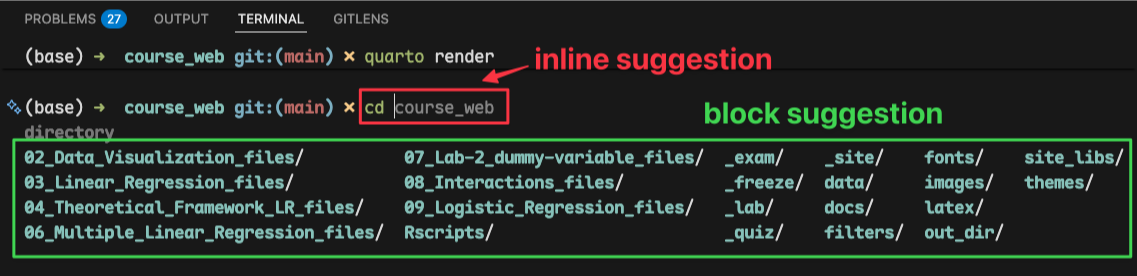
zsh-autosuggestions: Autocomplete commands based on your history.
Install
Clone this repository into $ZSH_CUSTOM/plugins (by default ~/.oh-my-zsh/custom/plugins)
git clone https://github.com/zsh-users/zsh-autosuggestions ${ZSH_CUSTOM:-~/.oh-my-zsh/custom}/plugins/zsh-autosuggestions
-
Right arrow (→) accepts the inline suggestion.
-
Block suggestion under the input line:
Click ↓ to go the the block suggestion, then navigate Use arrow keys (↑/↓) to navigate through suggestions and hit Enter to accept the suggestion.
Partial acceptance
By default Enter accepts the entire suggested command. To accept only the next word of a suggestion, you can use the forward-word widget.
Add the following line to ~/.zshrc after source $ZSH/oh-my-zsh.sh:
# Bindkeys Map; need to be AFTER source $ZSH/oh-my-zsh.sh
bindkey -M viins '^[f' forward-word      # Bind Alt+Right (Esc+f) to forward-word (vi insert mode)
This will bind the forward-word widget to Opt + Right Arrow (or Esc+f) in vi insert mode.
Git
git is one of the built-in plugins. You can enable it by adding git to the plugins=(...) line in your ~/.zshrc file. It provides a lot of helpful aliases and functions for git commands.
git needs to be loaded after zsh-autocomplete and zsh-autosuggestions plugins.
The Git aliases I use most frequently are as follows:
| Alias | Command |
|---|---|
ga and gaa |
git add & git add --all |
gcmsg |
git commit --message |
gp |
git push |
Aliases are displayed in the terminal, you provide the options accordingly. When you hit Enter, the command will be executed. For example, if you type gp and hit Enter, it will execute git push.
FAQ
Q: How to disable Oh My Zsh auto update check?
A: Open ~/.zshrc file and add the following line:
zstyle ':omz:update' mode disabled # disable automatic updates
You can manually update by running omz update in your terminal.
Troubleshoot
Q: How to fix error compinit:489: bad math expression: operand expected at end of string error?
A: This error usually triggers because the compiled completion file (.zcompdump) gets out of sync with the underlying terminal functions. You need to clear your corrupted Zsh completion cache. Run the following commands in your terminal to fix the issue:
# 1. Remove the corrupted completion cache files
rm -f ~/.zcompdump*

# 2. Reload Zsh to regenerate the cache cleanly
exec zsh
ref: