LaTeX Bibliography Manager – Zotero
 Zotero is a free and open-source reference management software to manage bibliographic data.
It is available for Windows, macOS, and Linux.
Zotero is a free and open-source reference management software to manage bibliographic data.
It is available for Windows, macOS, and Linux.
Add new items
- Add by Identifier: Click the magic wand icon 🪄 in the toolbar > Paste DOI, ISBN or arXiv ID of the citation > Press Enter.
General Settings
-
Disable automatic download pdfs and snapshots
Preferences > File Handling > Uncheck
- “Automatically attach associated PDFs and other files when saving items”
- “Automatically take snapshots when creating items from web pages”
-
Base Directory
Base Directory is useful when you want to store all your attachments in a specific folder, rather than the default Zotero storage folder, i.e.,
~/Zotero/storage.The problem with the default Zotero storage folder is that it use random alphanumeric folder names for each item, making it hard to identify the files.
To change the Base Directory, go to Zotero > Preferences > Advanced > Files and Folders > Change your “Base Directory” to your desired folder to store attachments. ↩
My Base Directory is set to
/Users/menghan/Documents/Zotero.
This setting let you access all your attachments on multiple computers even if they are stored in different locations on each computer, as long as you set the Base Directory to the correct sync folder on each computer.
Use scenario: You have two computers, A and B.
A is a Mac, and set the Base Directory to
/Users/Sarah/Dropbox/PDFson A.B is a Windows PC, and set the Base Directory to
C:\Users\Sarah\Dropbox\PDFson B.If you add a pdf attachment within the base directory, Zotero stores a relative path to that base direcotry rather than an absolute path.
Note that this setting does not control where files are stored — only whether linked files within the specified folder are referenced by absolute or relative paths.
If you want to keep the actual pdfs in the base directory, you can use
AttangerorZotMoovplugin to move the attachments to the base directory.When you set up
AttangerorZotMoov, make sure theDestination Pathis consistent with yourBase Directory.
Sync Settings
Use Zotero’s sync feature to keep your library up to date across multiple devices and back it up to the cloud.
-
Data Syncing
Data syncing merges library items, notes, links, tags, etc. — everything except attachment files — between your local computer and the Zotero servers, allowing you to work with your data from any computer with Zotero installed and to view your library online on zotero.org. Data syncing is free and unlimited, and it can be used without file syncing.
-
Sync automatically: When check, Zotero will start a sync every time you make a change to your library. You can manually start a sync by clicking the sync button (circular green arrow) in the upper-right corner of the Zotero window.
-
Sync full-text content: When checked, Zotero will sync the extracted text contents of your PDFs and other files, allowing you to perform searches across devices regardless of whether files have been downloaded to a particular device. This also allows for full-text searches in the web library.
Uncheck “Sync full-text content” and “Sync attachment files in My Library” to avoid your Zotero cloud storage being quickly filled up.
Zotero’s cloud file storage only provides 300 MB free space, and syncing full-text content can quickly use up your storage quota. One pdf file is around 3–5 MB, that means you can only sync ~70 files before you run out of free storage. You can buy more storage at $20/year for 2 GB.
A workaround is to use
AttangerorZotMoovto manage your attachments in a local folder synced by cloud services or NAS. This way, you get unlimited storage for your attachments. See the next section on “Sync local pdf files” for details.
-
-
File Syncing
I use NAS to sync my Zotero attachments across multiple devices. So here I uncheck “Sync attachment files in My Library using Zotero”.
Zotero cloud storage is the default option to sync attachments. But it has limited space. An alternative is to use WebDAV.
- Zotero:
-
Sync file attachments using Zotero File Storage.
-
Each Zotero user is given 300 MB of free Zotero Storage for attached files.
-
- WebDAV:
-
Sync file attachments using WebDAV storage.
-
Enter the URL for your WebDAV server (note that
/zoterois added to the end of the URL automatically), your username, and your password. -
Click “Verify Server” to check whether Zotero can connect with the server for file syncing.
-
- Download files:
-
At sync time: Download all attachment files not already in your local Zotero file storage on your computer each time Zotero syncs.
-
As needed: Only download attachment files when the user attempts to open the file. Useful for reducing the amount of hard disk space Zotero uses for attachments.
-
- Zotero:
ref:
Sync local pdf files
Issue: Zotero cloud storage only provides 300 MB free space. If you manage pdf using Zotero, we will quickly run out of space.
Fix: Follow the steps below to get unlimited attachment Zotero storage using cloud services or NAS. You can use this approach to sync your Zotero attachments across multiple devices without using Zotero’s cloud storage.
Prerequisites:
- a sync service and
- Zotero linked file manager plugin, such as
AttangerorZotMoov.
Step by step instructions:
-
Create a folder for storing and syncing Zotero attachments.
This folder will be synced to multiple devices using cloud services or NAS. PDF attachments will be stored in this folder.
I use NAS to sync my Zotero directory, so I create a folder
~/Documents/Zoteroon my local computer.Alternatively, if you use cloud services, such as Google Drive, Dropbox, OneDrive, etc., you can create the folder within the local sync folder of these services. An example is
~/Google Drive/Zotero. -
Change your Base Directory to your local sync folder.
Zotero > Preferences > Advanced > Files and Folders > Change your “Base Directory” to your local sync folder.
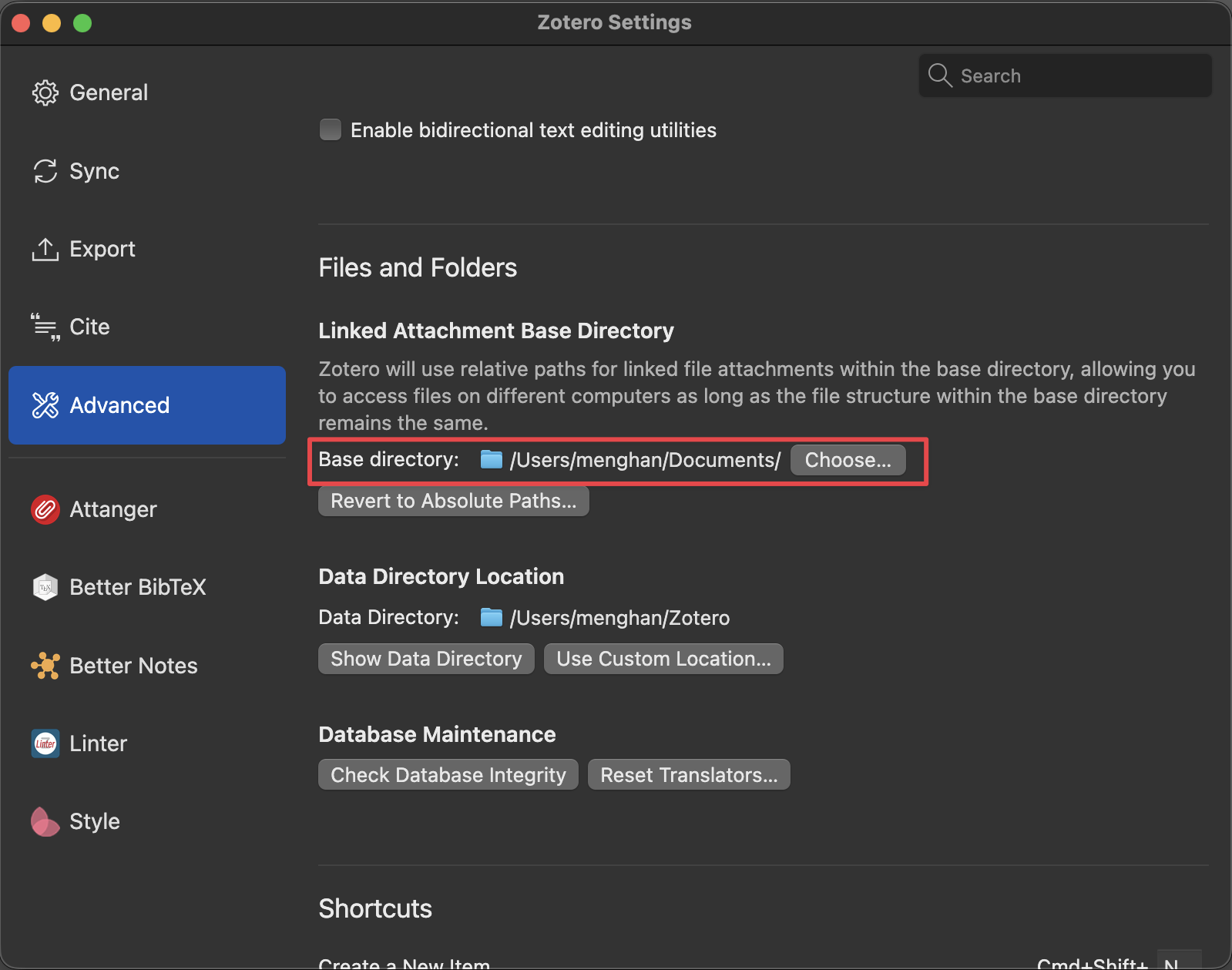
-
In your linked file manager plugin, such as
AttangerorZotMoov, set theDestination Pathto be the same as your Base Directory.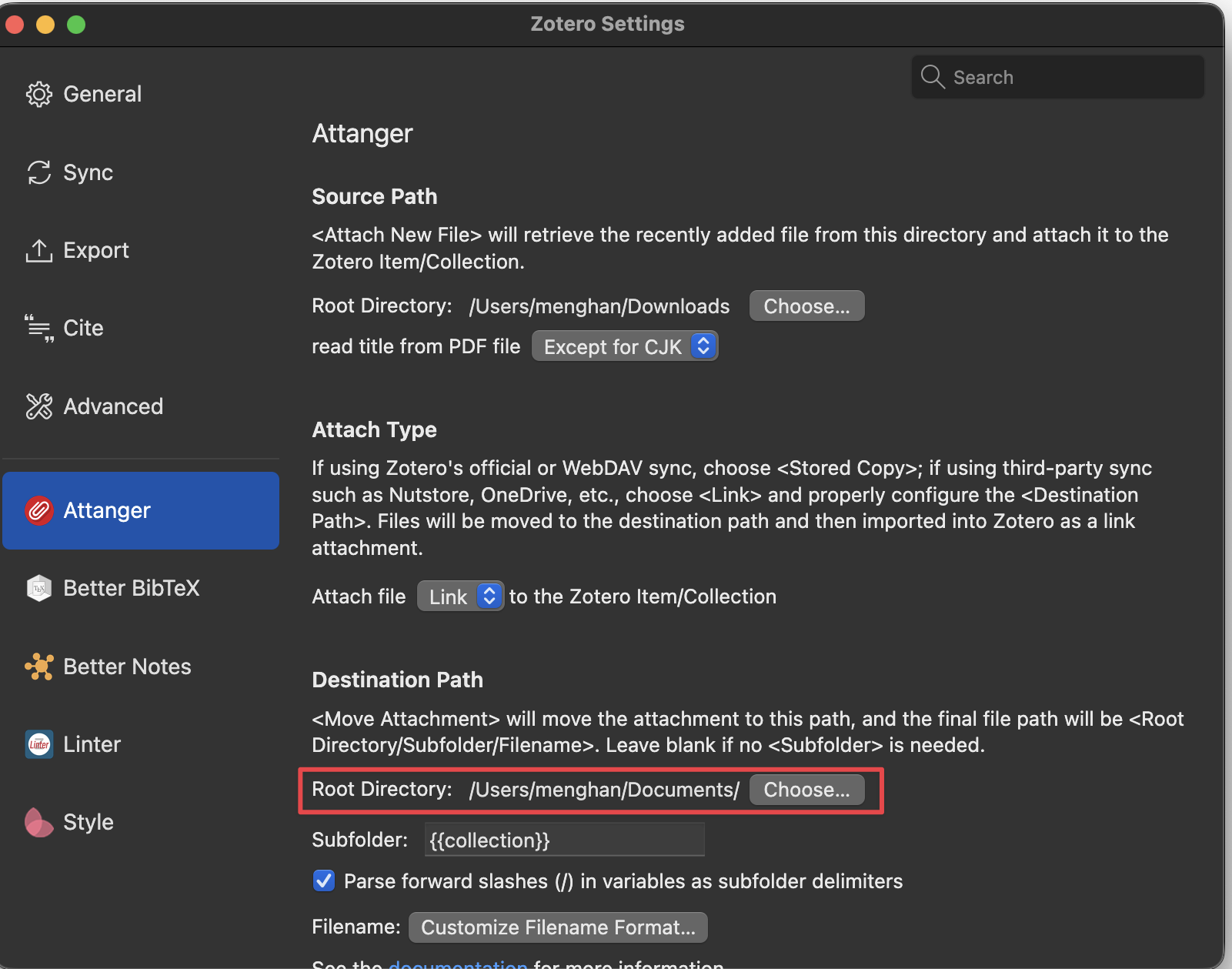
This way, all your pdf attachments are stored in your local sync folder, and synced to other devices using your cloud services or NAS.
See Attanger for detailed instructions on how to set up synced folders.
ref:
 Youtube video: Zotero + Google Drive Sync start from 8:11
Plugins
Better Bib(La)Tex
Useful links:
How to install the BBT plugin
- Download
.xpifile from the GitHub releases page. - Go to Zotero > Tools > Plugins > Click on the gear in the top-right corner > choose ‘Install Plugin From File…’ > Select the
.xpifile you downloaded
You can use the same method to install other Zotero plugins.
How to export bibtex items
- Select the references you want to export in Zotero
- Right click > Better BibTeX > Copy BibTeX to Clipboard
- Paste the content into a
.bibfile
Quick-Copy format
If you just want to quickly add references to a paper, you can use the Quick-Copy feature.
- Go to Preferences (⌘,) > Better BibTeX > Quick-Copy
-
Set Quick-Copy format.
- Default Output Format: LaTeX citation
- Cite Keys
Edit > Copy Citation (⇧⌘A) to copy the citation in the selected format.
Piergallini, “Corporate Finance and Interest Rate Policy.”
Edit > Copy Bibliography (⇧⌘C)
The default style is Chicago Manual of Style 18th edition (shortened notes and bibliography).
Piergallini, Alessandro. “Corporate Finance and Interest Rate Policy.” Preprint, SSRN, 2024. https://doi.org/10.2139/ssrn.5009544.
You can change the default style in Preferences > Export > Quick Copy > Item Format.
I change the Item Format Better BibTeX. So when I do ⇧⌘C, it will copy the bibliography in BibTeX format.
@article{piergallini2024corporate,
  title={Corporate Finance and Interest Rate Policy},
  author={Piergallini, Alessandro},
  year={2024},
  publisher={SSRN}
}
A side effect after setting Better BibTeX as the Item Format is that you cannot copy citations using shortcut ⇧⌘A anymore. And the Edit menu does not have the Copy Citation option anymore.
A workaround is to right click on the item and choose “Create Bibliography from Item…”
Cite Keys
Citekeys are generated according to a user-defined formula composed of functions and filters. Broadly,
-
Functions grab text from your item, and
Examples of functions (field markers):
auth,title,year,shorttitle(n, m), etc. -
Filters transform that text.
Examples of filters:
.lower,.upper,.abbr, etc..lower: convert to lowercase.upper: convert to uppercase.abbr: abbreviate names.-
journal.abbrwould use the first letters abbreviations of each word in the journal name, using uppercase letters by default.For example,
Journal of Fish BiologyproducesJoFB. -
title.abbrwould from the titleAn awesome paper on JabRefproduceAAPoJ
-
Note that you can have multiple filters chained together, e.g.,
journal.lower.abbr. For examples,Journal of Fish Biologywould becomejofb.
The default key pattern is auth.lower + shorttitle(3, 3) + year:
- last name of first author without spaces, in lowercase because of the .lower filter
- The first
n(default: 3) words of the title, apply capitalization to firstm(default: 3) of those. - year of publication if any,
- a letter postfix (a, b, c, etc) in case of a clash (this part is always added, you can’t disable it, although you can change it to Zotero-style numeric)
Changing a pattern will only affect items created/changed after you changed the pattern; existing keys are NOT automatically updated when you change the pattern.
If you want your keys to update after a pattern change, you will have to select your items, right-click > Better BibTeX > Select Refresh BibTeX key. This will not affect keys you have pinned.
Taking the following reference as an example:
Zhang, Peng, Olivier Deschenes, Kyle Meng, and Junjie Zhang. “Temperature Effects on Productivity and Factor Reallocation: Evidence from a Half Million Chinese Manufacturing Plants.” Journal of Environmental Economics and Management 88 (March 2018): 1–17. https://doi.org/10.1016/j.jeem.2017.11.001.
| Cite Key Pattern | Resulting Cite Key |
|---|---|
auth.lower + shorttitle(3, 3) + year |
zhangTemperatureEffectsProductivity2018 |
auth + shorttitle(3, 3) + year |
ZhangTemperatureEffectsProductivity2018 |
auth + year |
Zhang2018 |
auth + year + shorttitle(2, 2) |
Zhang2018TemperatureEffects |
Generating cite keys
Editing the formula does not update any citation keys. A new formula takes effect for items changed from that point forward.
If you want to apply your new formula to existing items, select the items, right-click, and choose Better BibTeX → “Refresh BibTeX key”.
Attanger
Same function as ZotMoov. They are used to automatically move pdf attachments and link them. Previously, Zotfile does the same job, but it is no longer compatible with Zotero 7+.
Attanger puts your literature at one local directory following your library structure, with meaningful file names which help you identify the files quickly. You can use any cloud services or NAS to sync the local directory to multiple devices.
This way, you use Zotero as a pdf viewer and make annotations, which will be synced to all your devices. One drawback is that the annotations made using Zotero pdf viewer are not visible if you open the pdf using other pdf readers, such as Adobe Acrobat or Preview on macOS.
If you add annotation using Preview, when you open it using Zotero pdf viewer, the annotations are visible. But if you add annotation using Zotero pdf viewer, when you open it using Preview, the annotations are not visible.
-
Zotero pdf viewer: annotation saved in Zotero. As long as you have Zotero installed, you can see the annotations.
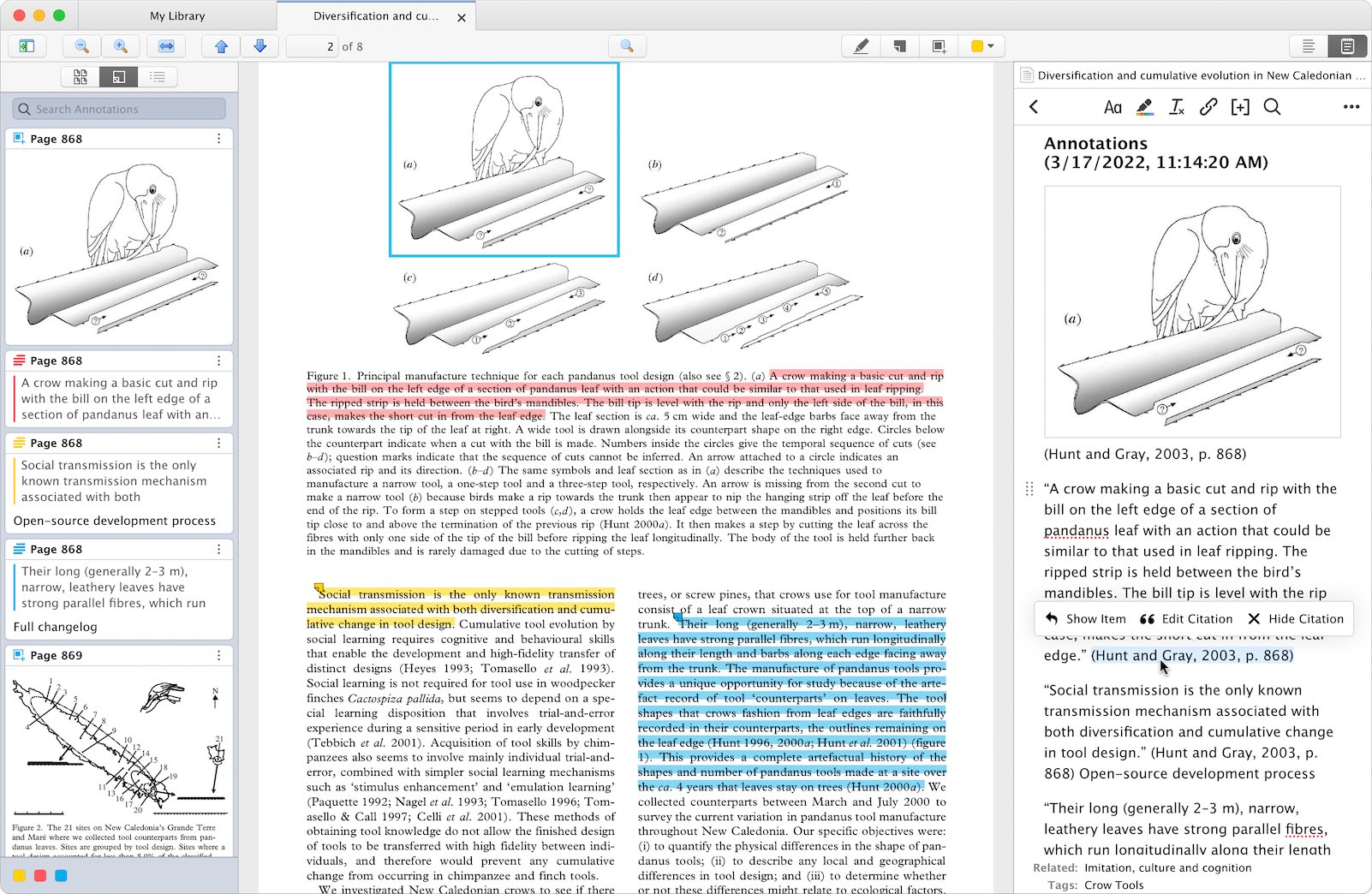
Let me try to use Zotero pdf viewer as my main pdf reader when I do literature review. See how it goes and decide if I want to stick to it or go back to Preview.
What I like about Zotero pdf viewer:
-
Add quotes linked to bibliography entries in Better Notes.
You can select figure and add to Better Notes too.
- Add comment on highlighted text. ← Not possible on Preview.
- Hover over hyperlink to see the referenced object, Figure/Table/Eqn/bibliography, etc. ← Not possible on Preview.
- Other basic annotation functions, such as highlight, underline, sticky notes. ← Supported by Preview.
- You can set pdf viewer themes, like changing background color to sepia, dark mode, etc. ← Not possible on Preview.
See HERE for documentation of PDF reader in Zotero.
-
-
Mac Preview: annotation saved in the pdf file. The annotations are visible everywhere, such as web browsers, etc.
Annotation direction:
Preview → Zotero ✅
Zotero → Preview ❌
Configuration
Attanger settings:
-
Source Path(源路径): This can be set to the~/Downloadsfolder where Zotero will retrieve newly added files and attach it to ZOtero Item/Collection.This is the local directory where your browser downloads files to.
-
Attach Path(附加类型): Leave it asLink. This is the default.
-
Destination Path(靶路径): This is the directory to move files to. Set it to yourBase Directory.This is the local directory to move the attachments to. I set it to
~/Documents/Zotero.I sync this file using NAS. You can use any cloud services instead, such as Google Drive, Dropbox, OneDrive, etc.
How to use
After configuring Attanger, when you download a pdf file from the web, it will first be saved to your Source Path (e.g., ~/Downloads).
Then, in Zotero, right click on the item you want to attach the pdf to, and choose Attanger > Attach New File. It will identify the latest file in your Source Path, move it to your Destination Path, and attach it to the Zotero item.
For existing attachments, the pdf files are still stored in the default Zotero storage folder (~/Zotero/storage) with random alphanumeric folder names.
If you want to move these attachments to your Destination Path, you can select the items, right click, and choose Attanger > Move Attachment. The pdf files will be moved to the destination path.
If you renamed a collection, you can use Move Attachment to move the attachments to the new path. This way, the attachments will be organized in a folder structure consistent with your Zotero library structure.
Note that linked files that are managed/tracked by Attanger will show a link ∞ on top of the file icon  .
.
ref:
- US Berkeley Library: ZotMoov
- Zotero hacks: reliably setup unlimited storage for you personal academic library, @Ilya Kashnitsky
Ethereal Style
This plugin customizes the appearance of the Zotero interface to make it cleaner and more visually appealing.
⇧P to start a command palette to quickly access various functions provided by Ethereal Style.
Highlight features:
- Title: As the background of title, reading progress visually reflect the distribution of your reading time of each page for the PDF under a item, the darker the color the longer the reading time.
Better Notes
Better Notes allows you to make notes in Markdown format while reading PDFs in Zotero. My favorite feature: you can select text in the PDF viewer and right click to add it as a note to the item. The citation key is automatically added. When you click on the citation, it will take you to the corresponding page in the PDF.
Q: How to add quotes from PDF to notes?
A: The trick is that you need to select and open the target Notes as a side panel to make the “Add to Note” option appear when you right click on the selected text in the PDF viewer.
When you have seen this window, you can then click the three dots ... on the status bar of the Notes. This allows you to select “Open Note in New Tab”. The “Add to Note” options will still work this way. Otherwise, if you open the note directly, the “Add to Note” option will not appear when you right click on the selected text in the PDF viewer.
Click “Add to Note”. The selected text will be added to the note, with the citation key automatically added.
Hierarchy of Better Notes: It can be placed under an item, or a collection, or the whole library.
Magic Key
Type / to open a menu of commands, where you can e.g., insert a citation, typset text, insert math block.
Q: How to insert inline math?
A: Type $ to open the inline math, then type your math formula, and type $ again to close the equation.
Q: How to insert a math block?
A: Type $$ followed by a space to create a block. Or use the Magic Key / to open the command menu, and choose “Insert math block”. Then you can type your math formula in the block.
Tool bar
| Number | Function |
|---|---|
| 1 | Format text (bold, italic, etc.) |
| 2 | Change text color |
| 3 | Highlight text |
| 4 | Clear Format |
| 5 | Insert link |
| 6 | Insert Citation |
| 7 | Find and Replace |
Export Notes: Click the three dots ... on tool bar > Export Current Notes... > Choose the format you want to export, e.g., LaTeX.
Ref:
- Zotero的 Better Notes!写综述必备 starts from 03:30
-
Zotero 插件 Better Notes 超好用笔记插件 starts from 13:50
This video also shows installation.
Useful plugins
-
Add-on Market: Plugin manager.
By default, you need to download the
.xpifile from GitHub releases page and install it manually. But with this add-on, you can search and install plugins directly from Zotero interface.You can also update and remove plugins directly from this add-on.
Click click and choose “Homepage” to go to the GitHub repo of the plugin.
-
Set Citation keys to
auth + year. -
Attanger: Organize pdf files in your selected folder.
自动更改文件名称、移动文件到指定文件夹。
一个附加功能是,通过同步文件夹实现多设备同步附件。🔥
Need to set up the
Source PathandDestination Pathin the settings for it to work. -
Better Notes: Making notes while reading PDFs in Zotero.
You can select text in the PDF viewer and right click to add it as a note to the item. The citation key is automatically added. When you click on the citation, it will take you to the corresponding page in the PDF. 👍
You can export notes as latex format.
Support some simple markdown syntax and keyboard shortcuts.
-
Linter: Format item metadata.
It will retrieve metadat, and rename pdf files to be identifiable.
-
Ethereal Style: customize appearance of Zotero interface
-
delitemwithatt: Delete item with attachments. By default, when you delete an item, the attachments are not deleted. This plugin allows you to delete the attachments together with the item.
AI plugins (not tested yet):
AI research assistant:
- Monnlight: 3 papers per week
VS Code LaTeX
VSCode Zotero extension allows you to insert citations and bibliographies into your LaTeX document using Zotero.
- Insert citation: ctrl + cmd + r
- Open Zotero entry under cursor: ctrl + cmd + o
- Tidy up
.bibfile: ctrl + cmd + t
MS Word
Install Zotero Word plugin following this guide.
After installation, you will see a Zotero tab in Word. You can use it to insert citations and bibliographies into your Word document.

- Add/Edit Citation: Add a new citation or edit an existing citation in your document at the cursor location.
- Add/Edit Bibliography: Add a new bibliography or edit an existing bibliography in your document at the cursor location.
- Document Preferences: Set the citation style and other preferences for your document.
More usage instructions can be found in Using the Zotero Word Plugin
Shared Library
Zotero groups provide a powerful way to share bibliography with coauthors. There is NO limit on how many members may join your groups, and your full storage subscription is always available to your personal and group libraries.
Use case scenario: If your coauthor wants to edit the item type or authors, they can do so in the group library. The changes in the Share Library will be reflected in your paper references. It is NOT suggested to make changes directly in the docx as it will be overwritten by the Zotero data when you refresh. Zotero data is the root, docx retrieves data from Zotero. So if you want to make changes, do it in the Zotero library.
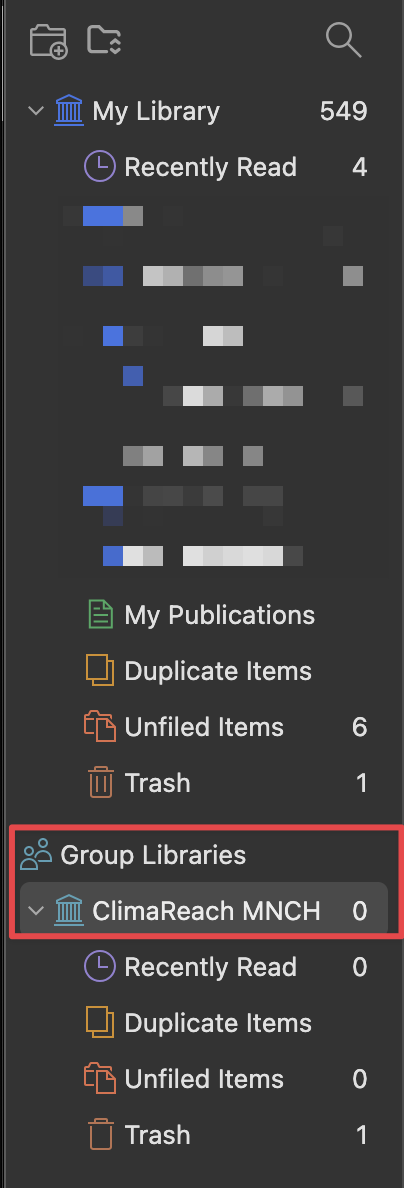
Create a New Group. Follow instructions, then your Group Libraries will show under your personal library.
On the Group Settings page, select “Members Settings” to invite members to your group.
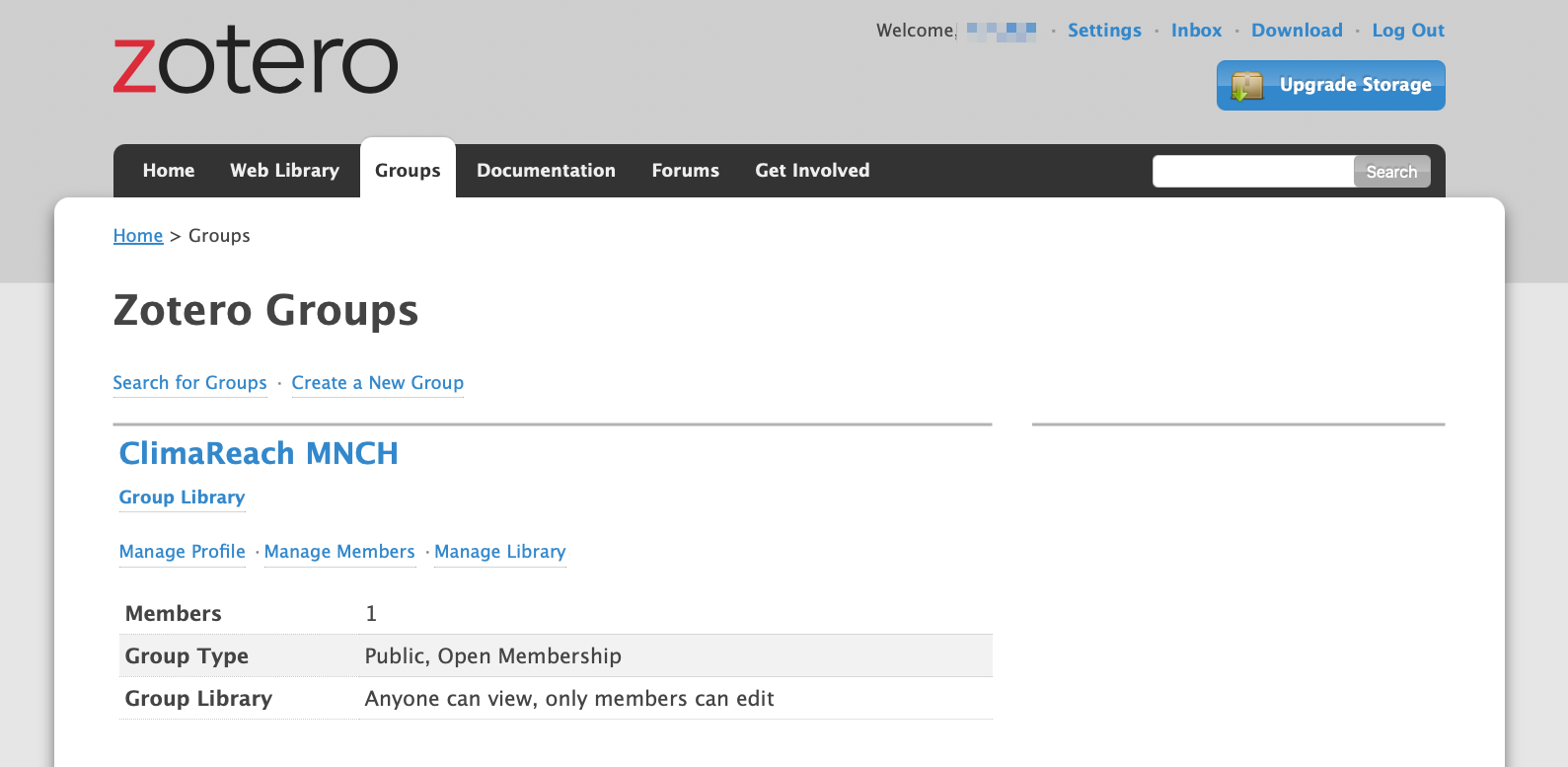
Users must log in to the zotero.org website to join a group.
ref:
FAQ
Q: How to copy a bibliography entry?
A: Edit > Copy Bibliography (⇧⌘C). You need to follow the steps in Quick-Copy format to set the default style.
Q: Better BibTeX export has no year field even though the item has a date. ↩
A: Exporting through BBT as “Copy BibTeX to lipboard” instead of “Copy BibLaTeX to lipboard” uses ‘year’ instead of ‘date’.
BibLaTeX exporter: ❌
@article{Schlenker2010, |
  title        = {Robust Negative Impacts of Climate Change on  Agriculture},
  author       = {Schlenker, Wolfram and Lobell, David B},
  date         = {2010-01},
  journaltitle = {Environmental Research Letters},
  volume       = {5},
  number       = {1},
  pages        = {014010},
  issn         = {1748-9326},
  doi          = {10.1088/1748-9326/5/1/014010},
  url          = {http://stacks.iop.org/1748-9326/5/i=1/a=014010},
  urldate      = {2019-01-06}
}
BibTeX exporter: ✅
@article{Schlenker2010,
  title = {Robust Negative Impacts of Climate Change on  Agriculture},
  author = {Schlenker, Wolfram and Lobell, David B},
  year = {2010},
  month = jan,
  journal = {Environmental Research Letters},
  volume = {5},
  number = {1},
  pages = {014010},
  issn = {1748-9326},
  doi = {10.1088/1748-9326/5/1/014010},
  urldate = {2019-01-06}
}
Q: How to rotate a pdf page?
A: Got to thumbnail view, right click on the page you want to rotate, and choose “Rotate Left” or “Rotate Right”.