Anki flashcards
客户端:
- AnkiMobile Flashcards (iOS): 299 kr
- Anki Desktop (macOS, Windows, Linux): free
- Anki Web: free
Study in Anki is limited to the currently selected deck as well as any subdecks it contains.
Answer buttons
- Again (keyboard shortcut 1)
- Hard (keyboard shortcut 2)
- Good (keyboard shortcut 3, space, Enter)
- Easy (keyboard shortcut 4)
When studying, either Space or Enter will show the answer. When the answer is shown, you can use Space or Enter to select the Good button. You can use the 1-4 keys to select a specific ease button.
Many people find it convenient to answer most cards with Space and keep one finger on 1 for when they forget.
Filtered Decks
To create a filtered deck manually, ↩︎
- Tools menu > choose Create Filtered Deck.
- Enter Deck name. Under Search, enter “deck:DECKNAME”, set limit to 9999 cards (to filter out all the cards), enable random selection, deselect “Reschedule cards” and build the deck.
- If you wish to fetch cards again using the same filter options, Rebuild the deck.
When a card is moved to a filtered deck, it retains a link to the deck, from which it came. That previous deck is said to be the card’s “home deck”.
It is also possible to move all cards back to their “home decks” at once:
-
The Empty button in the study overview moves all cards in the filtered deck back to their home deck, but does NOT delete the empty filtered deck. This can be useful if you want to fill it again later (using the Rebuild button).
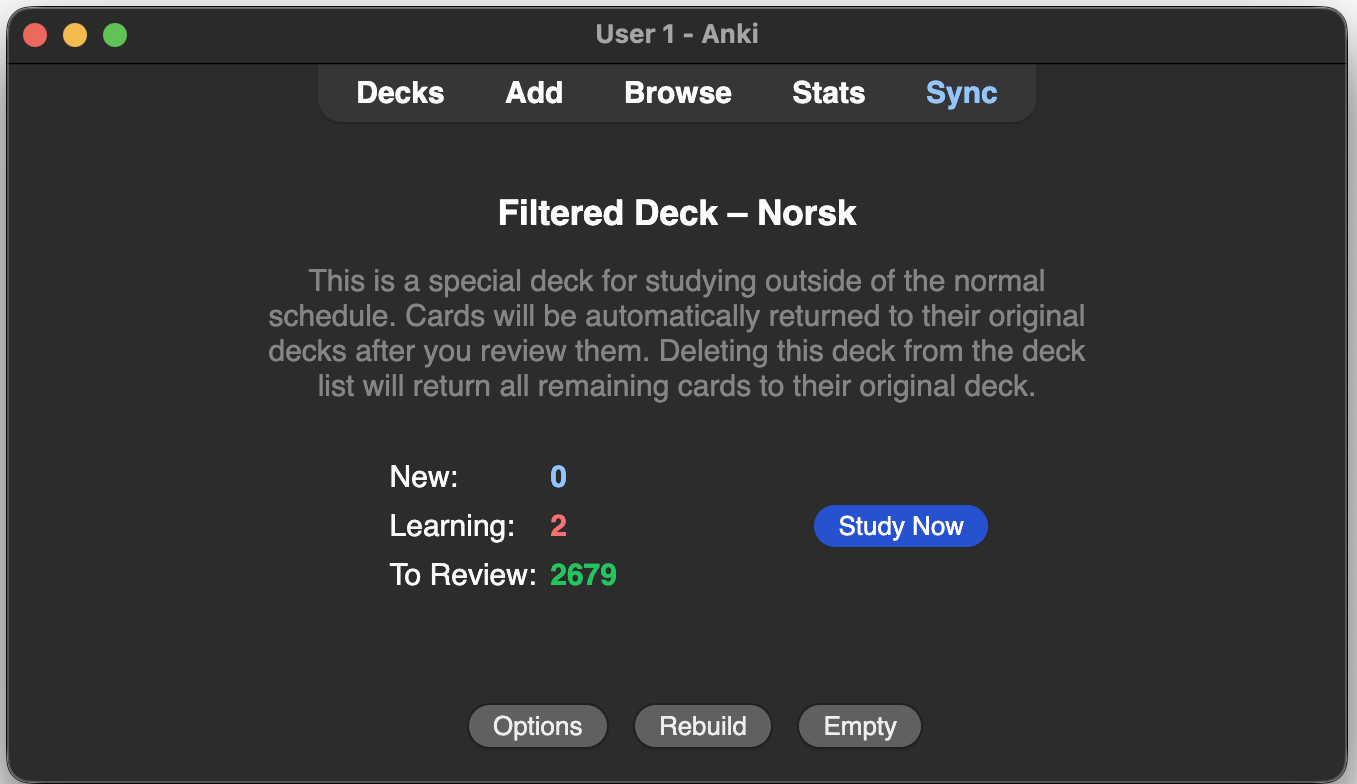
-
Deleting a filtered deck does the same thing as “Empty” does, but also removes the emptied deck from the deck list. No cards are deleted when you delete a filtered deck.
Numbers in the card browser
-
New (Blue): Cards you have added to your deck but have never studied before.
By default, a limit applies to how many of these you see daily, though this can be adjusted in deck options.
-
Learning/Relearning (Red/Orange): cards being learned
-
Due (Green): cards you’ve learned already that are due for review
Anki Mobile
By default, cards show center aligned. To set to left aligned, go to any deck, click the ⚙️ icon on the bottom right corner. Under “All Actions”, go to “Card Template”. Choose “CSS Styling” on the bottom of the screen. Now, where it says “text-align: center;”, replace “center” with “left”.
Left side of screen is again, and right side is good. This allows you to tap on the left side of the screen to trigger the red button, and the right side of the screen to trigger the green button. Taps near the middle of the screen will be ignored.
ref: