Mac Software – Alfred
Alfred is a Mac Spotlight replacement app and enhancement, which boosts your efficiency with hotkeys, keywords, text expansion and more. It is a powerful launcher that helps you quickly find files, launch applications, and perform various tasks on your Mac.
Q: Is Alfred free?
A: Go to Alfred homepage, scroll down to “Productivity at your Fingertips”. The functions without stars are free to use. The starred functions require the paid “Alfred Powerpack” license.
What are in the free version?
-
Find and launch applications, files (same as Mac Spotlight)
-
Web Search: search the web quickly with custom keywords
What are NOT in the free version but very useful, would be a big loss if missing it?
- Snippets (I use it all the time)
- Clipboard History
- Workflow
Useful resources:
Alfred Hotkeys
-
^ + Space: show Alfred bar
Here I replace Mac Spotlight with Alfred. ^ + Space was was the default Spotlight shortcut. To replace it with Alfred, go to System Settings > Keyboard > Keyboard Shortcuts > Spotlight, and uncheck the default shortcut. Then set Alfred hotkey to ^ + Space in Alfred Preferences > General > Alfred Hotkey.
-
⌘,: preferences
First activate Alfred bar, then press ⌘, to open Alfred Preferences.
-
␣f-name: search internal files and folders with name
f-name- ⌘ + Enter: show file location in folder
Setup
-
Uncheck automatic update
-
Hide/Show Alfred icon in the search bar
Appearance > Options > Check “Hide menu bar icon”
Alfred will launch without a menu bar icon, showing only the search bar for a cleaner, Spotlight-like experience.
- Import Snippet collections
-
Enable Query History
Advanced preferences > History > Check “Show latest query if within 5 minutes”
Highlight Features
-
Web Search: Efficient way to do customized searches. ↩
A drawback is that it opens a new tab in the browser each time you search even though you have already got the tab open in your browser.
How to use: Type
g <keyword>to search on Google. Don’t need to open browser, navigate to Google, and start typing then.My Custom Web Search Definitions:
g <keyword>to search on Googleyoudao <keyword>to search on 有道词典ord <keyword>to search on Ordnett 挪威语词典
Use example:
If you want to search Google Maps, start with “maps” followed by your desired search term, such as
maps cambridge. Hit Enter and Alfred will open Google Maps with the search results for Cambridge. -
Code snippet: keywords to be replaced by your snippets. Quick way to type phrases you use again and again.
Import snippet extensions: ↩
- Emoji Pack by Joel Califa
Type
snip <keyword>to look up snippets. -
Dictionary: type
define <word>to find the definition of the word. -
Terminal: type
> your shell cmd …to open terminal and run shell commands.
Alfred Snippets
Code snippet(begin with two colons ::)
cs_green: html colored span, greencs_orange: html colored span, orange
Basic syntax
{clipboard:0}: the latest clipboard content.{clipboard:x}refers to the x-th latest clipboard content.{cursor}: where the cursor will be after the snippet is expanded.
ref:
Snippet setting
-
Uncheck “Word based”
When the “Word based” is enabled, the snippet search sees the
:as part of the word, and so searching “whiskey” would return no results.Unchecking “Word based” makes it act more like a fuzzy search.
-
Check “Expand snippets mid-string” (Auto Expansion Options > Options)
By default, snippet keywords are only expanded if typed in isolation. Enable snippets expansion mid-string if you’d like them to always expand regardless.
-
When creating a new snippet, use the
prefixoption, e.g.,::, so that you can batch change later.Optionally, you can use the
suffixoption too, e.g.,:<keyword>:. The emoji snippet pack by Joel Califa uses this format.See HERE for a list of emoji snippets frequently used.
The following table shows some emojis I use most often:
Emoji Snippet Keyword ☺️ :relaxed:or:smileshy:😂 :joy:🙈 :see_no_evil:🤣 :rofl:😆 :laughing:or:satisfied:🤩 :star_struck:🤪 :zany_face:😎 :sunglasses:😉 :wink:🙏 :pray:or:thanks:❤️ :heart:👍 :thumbs␣up:or:+1:👏 :clap:✅ :checkmark:❌ :x:💡 :bulb: -
When you import snippets from other sources, you may want to uncheck “Strip snippets of ‘auto expand’ flag.”
This setting preserves all imported snippets if “Auto expansion allowed” is enabled.
Otherwise, you have to manually check the snippets you want to enable. For large snippet packs, you can use ⇧ + click to select a range of snippets, or ⌘ + click to select multiple snippets one by one, then right-click and select “Auto Expansion” > “Set Allowed” to enable them all at once.
The list of snippets contains one column
A→; it means “Auto expansion allowed”. Toggle it on/off for each snippet. It controls whether the snippet can be auto expanded when typing the prefix.Useful snippet packs:
- Greeks: type
;alphato insert α. → Start with; - Mac Symbols: type
::cmdand::optsymbols like ⌘ and ⌥, start with:: - Emoji Pack: type
:joy:to insert 😂,:heart:to insert ❤️, etc. → enquote emoji names in quotes::<emoji-name>:
- Greeks: type
Slowing down the key events
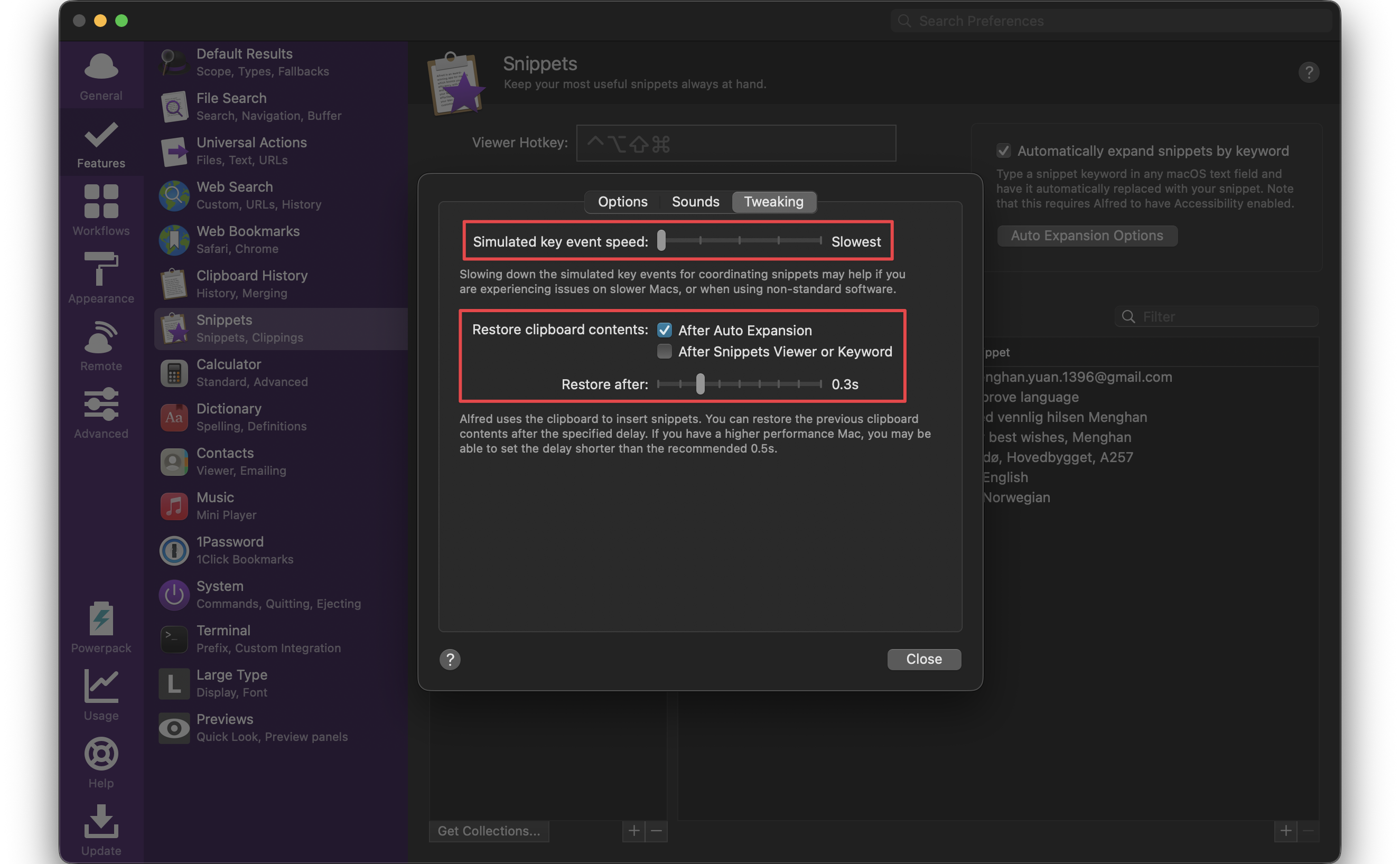
If, when expanding your keyword, you find that part of the keyword is still visible, the wrong text is pasted or part of the snippet text is deleted, try slowing down the key events.
Preferences > Snippets > Auto Expansion Options > Tweaking.
Move the slider (Simulated key event speed) to the left to slow down Alfred’s actions. We recommend starting with the slowest setting, then bringing it back towards the right until you’re seeing predictable behavior.
My setting (on a slow machine):
- “Simulated key event speed”: slower
-
Check “Restore clipboard contents: After Auto Expansion”, and set “Restore after” to 0.9s (defaults to 0.5s).
A slower “Restore after” provides you a longer time buffer to paste the snippet manually if the auto expansion did not work. This is useful especially on an old and slow Mac.
Tips: If your snippet does not expand, type slowly.
If your snippet do not expand, you need to adjust the time to a longer one as well.
- Reddit: Alfred snippets pasting from clipboard rather than snippet
- My snippets are expanding partially, or the keyword remains
Q: Snippet auto expand does not work in VS Code?
A: When you type the snippet keyword, the snippet is copied to clipboard, and you need to paste it (⌘V) to insert the snippet content.
Update (May 26): Adjust key event speed to the slowest setting, then it works without needing to paste. 👍
How to insert Alfred snippet in VS Code. Two methods:
- Method 1: Type the snippet keyword, then press ⌘V to paste the snippet content.
-
Method 2: This is useful especially when you cannot remember the exact snippet keyword.
- ⌃ + Space to launch Alfred.
- Type the snippet keyword, e.g.,
snip smile, a list of matching snippets appear. - Choose the desired snippet using arrow keys, then press Enter to paste it into VS Code.
Search Snippet Keyword Shortcut: snip is the default keyword to do a fuzzy search of snippets.
You can change snip to s in Alfred Preferences > Features > Snippets > Snippet Keyword.
Issue: When I type s␣, Alfred pops up a System Settings window instead of snippet search results. The reason is that s invokes the macOS System Settings at the first on the result list.
To fix this, follow the steps:
- Type
s, then choose the snippets search result using arrow keys or ⌘2, Alfred now waits for further input of snippet keyword. - Type the snippet keyword, e.g.,
smile, then the matching snippets appear. - Choose the desired snippet using arrow keys and hit Enter to paste it.
Clipboard History
Clipboard history Keyboard shortcit: ⌥⌘C
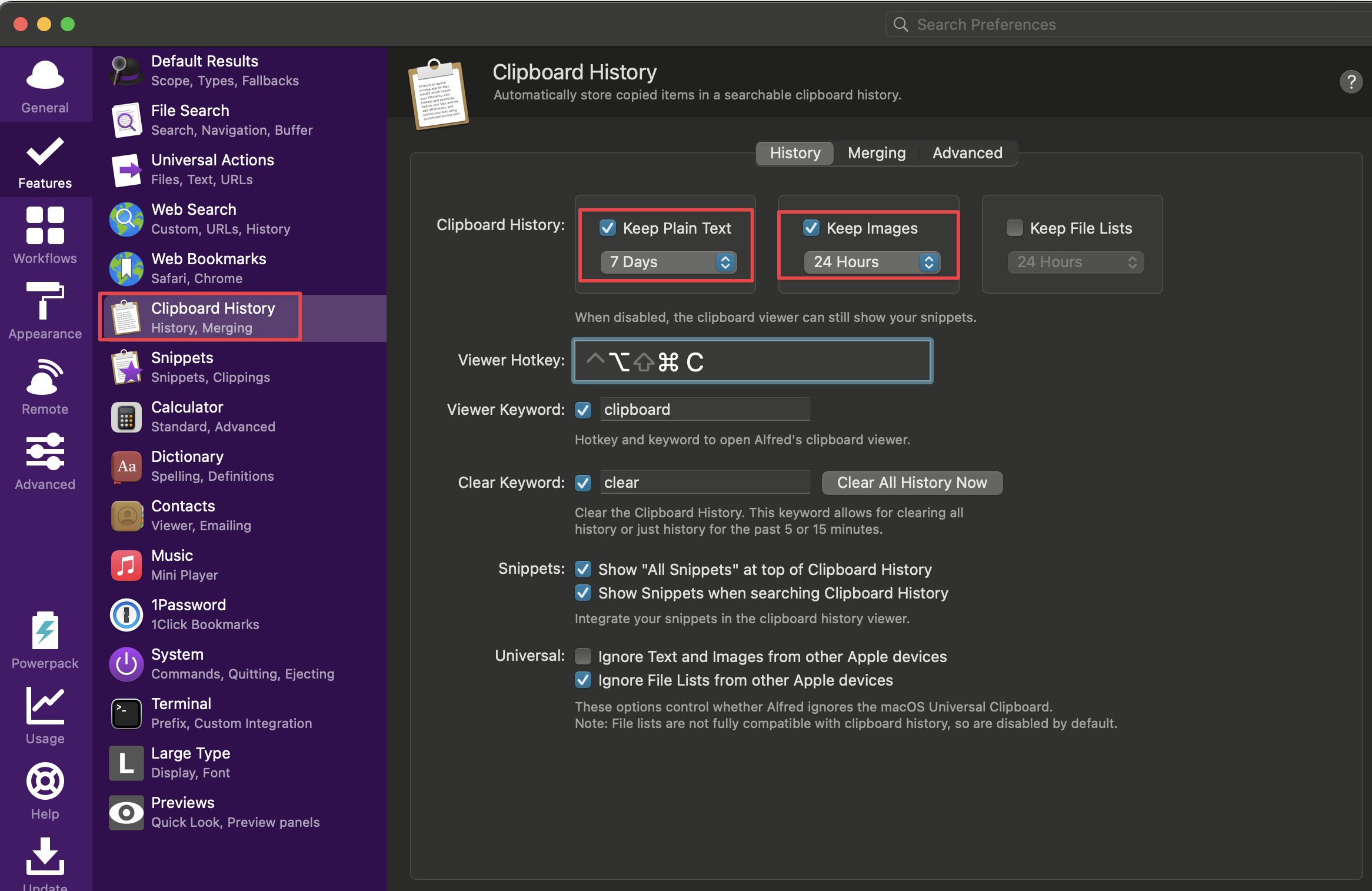
Configuration:
-
tick “Keep Plain Text”
Without this option, Alfred won’t preserve your ⌘C history.
-
tick “Keep Images”
Issue: Alfred snippets pasting from clipboard rather than snippet.
Fix: Slow down key events. I changed it from 0.5s to 0.6s.
Calculator
You can do calculations directly in Alfred. Just type the expression you want to calculate, and Alfred will show the result.
Open URL fast
Alfred will recognize URLs when they are typed into the search box, to help you quickly launch websites.
Add a custom URL scheme in Alfred Preferences > Features > Web Search > URLs / History.
After adding the custom URL scheme, you can type the url directly into Alfred’s search box to open the website.
Alfred remembers your URL history, so you can quickly access previously visited websites by typing a few characters of the URL.
For example, if I have added https://my1396.github.io/Econ-Study/tags/ as a custom URL scheme, I can type my in Alfred’s search box, and it will show the URL in the results. Press Enter to open the website.
The URLs will be removed if they’re not used for a given period of time, which can be set to 1 week, 1 month, 3 months or a year. 3 months is a good balance.
Sync preferences between Macs
Note: I couldn’t get it work. [26-01]
Primary Mac: the one you want to sync from. The settings on this Mac will overwrite anything you have on the second Mac.
- Preferences > Advanced > Set preferences folder… > Choose the location where you want to sync your settings (e.g.
~/Dropbox/Alfred/) and clickSet folder and restart Alfred. - Set Alfred.alfredpreferences to always be available offline.
Second Mac
- Check that your newly added settings file is available. You should see an Alfred.alfredpreferences file in the folder you picked.
- Set the file to be available offline and wait for the download to finish.
- Launch Alfred’s preferences to the Advanced tab and click on
Set preferences folder... - Find the folder in which your first Mac’s Alfred.alfredpreferences file is located and click
Set folder and restart Alfred - Once Alfred has restarted, you’ll be using your synced settings.
ref: Syncing Your Alfred Settings Between Macs
ref: