Word Mac
Keyboard Shortcuts
| Action | Shortcut |
|---|---|
| Copy/Paste Format | ⌘ ⇧ C / V |
| Paste Without Format | ⌥ ⌘ ⇧ V |
| Insert Equation | ⌃ = |
| Find and Replace | ⌥ H |
| Non-printing Characters | |
| Line Break (soft return) | ^ L |
| Paragraph Break (return) | ^ P |
| Navigation | |
| Begin / End of Document | Fn ⌘← / → |
| Next / Last Paragraph | ⌘ ↑ / ↓ |
| Next / Last Page | Fn ⌘↑ / ↓ |
Equation
Equation display mode
-
Professional: displayed as a formatted /rendered equation.
-
Linear: show the equation in its raw form. Whatever you type in the equation editor is the linear form.
There are two linear formats for math that Word supports:
/ Unicodemath: to render it, hit Spacebar after typing your command.{ } LaTeXmath: to render it, hit “Current – Professional” or “All – Professional” to render the equation.
Format Input Output Unicode Math a/(b+c)␣$\frac{a}{b+c}$ LaTeX \frac{a}{b+c}$\frac{a}{b+c}$
Type LaTeX code to enter equations
You can type LaTeX code in the equation editor.
- First, insert an equation by clicking “Insert” > “Equation” or using the shortcut
Ctrl+=. - Then choose
{ } LaTeX - Start typing your LaTeX code. For example, type
\frac{a}{b}to create a fraction. - When you are done, hit “Current – Professional” or “All – Professional” to render the equation.
IguanaTeX allows you to insert LaTeX equations into PowerPoint presentations. It insert the equation as an image, but you can edit the equation later. Free to use.
Install IguanaTeX using Homebrew:
brew install --cask iguanatexmac latexit-metadata
Then a IguanaTeX ribbon will appear in PowerPoint.

Click “New LaTeX display” to open a latex equation editor.
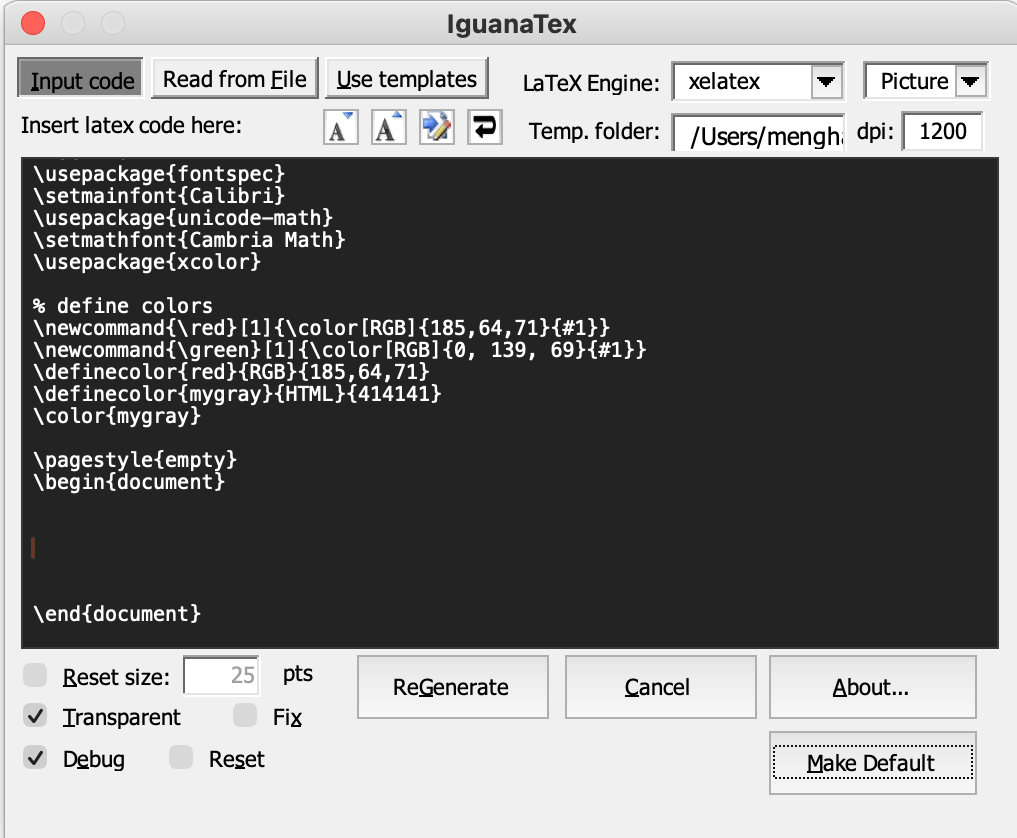
- Choose pdf engine: xelatex
- Set font size: 25 pts
Built-in Word Equation Editor
To use the built-in Word equation editor, you have to first enable the “Math AutoCorrect” feature in Word. Most version of Microsoft Word, Math AutoCorrect is enabled by default. However, in case of you accidentally turned it off before (I turned it off when I was preparing for the writing exam of the Norskprøver), following HERE to enable it.
Spaces is an important part of Math AutoCorrect shortcut. It tells Ms Word and Power Point when it is time to translate a part of equation into Mathematical Symbols/Operators.
- Insert an equation editor by ⌃ + =
- select
/ Unicode - type your equation in the editor following the syntax below. Hit space to render the equation.
General syntax:
- Use
()to enclose superscripts/subscripts, equivalent to{}in LaTeX. - Type
\to enter a command, e.g.,\sqrt, hit space to render the command. Then you can enter the arguments of the command.-
To enter a fraction, type
()/()␣, then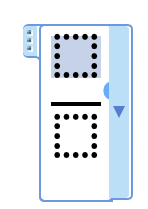 will appear. You can then enter the numerator and denominator in the boxes.
Alternatively, you can type
a/(b+c)␣to enter $\frac{a}{b+c}$.The parentheses are used to group the numerator and denominator. It is only necessary when the numerator or denominator has more than one term.
For example,
a/b+c␣will be rendered as $\frac{a}{b}+c$.
-
Multi-line equations aligned at the equal sign:
- Add line break by
Shift+Enter. -
Put cursor to the left of the first “=” sign, then right-click to open the context menu, select “Equation Alignment”.
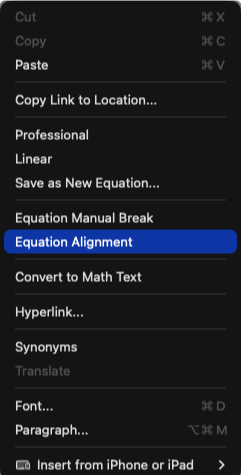
- Cannot select the equal sign itself. Otherwise, the drop-down menu will not show the “Equation Alignment” option.
- Cannot have any space between your cursor and the equal sign.
- Move on to the second line and repeat the same steps to align the second “=” sign. Repeat for all lines.
- You equation should now be aligned properly.
PPT multi-line equations
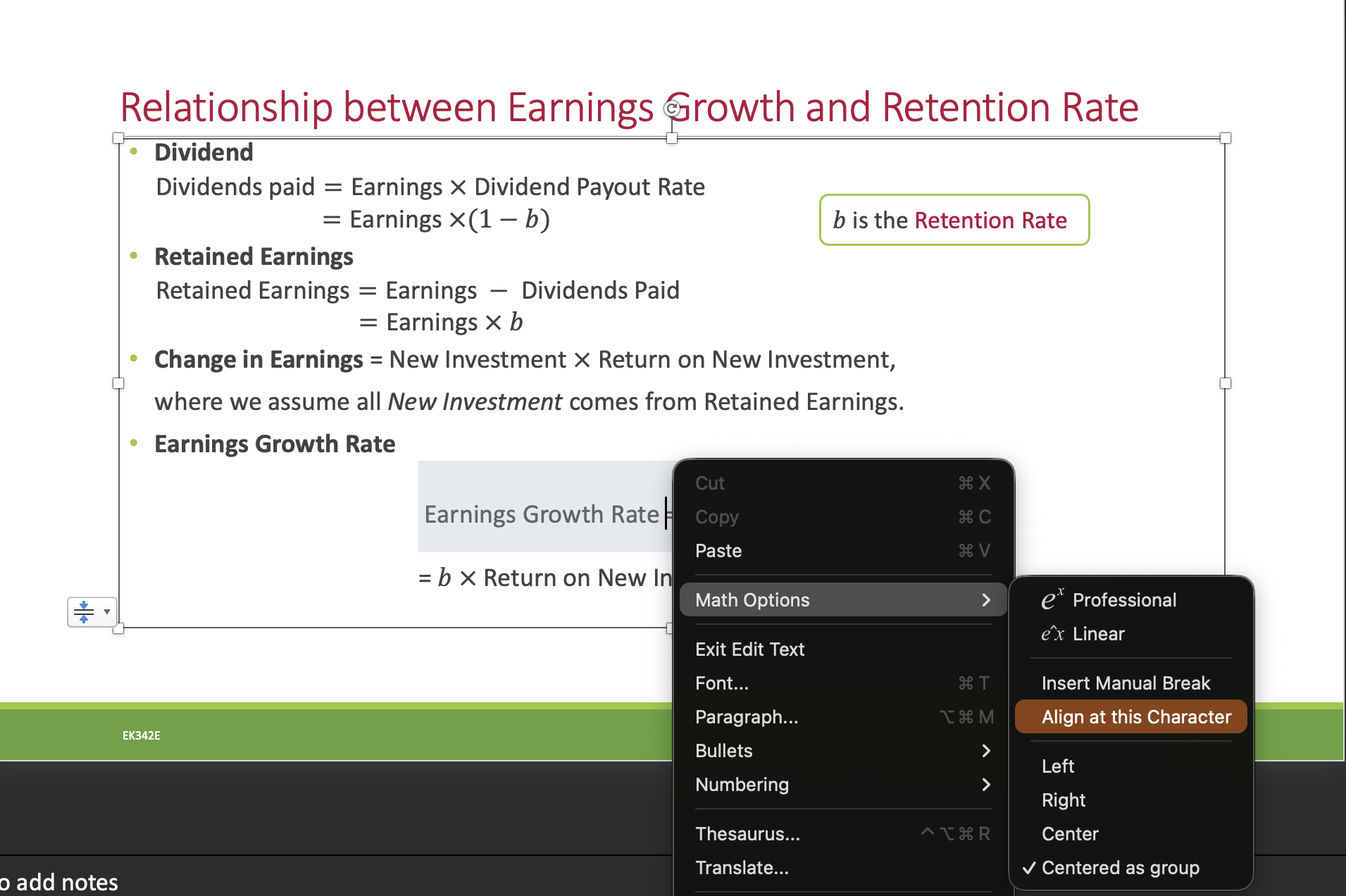
Method 1: Not recommended. The context menu is very unpredictable. Sometimes it won’t show.
- In equation mode, write your equations all in one line, hitting “shift+enter” to create each new line.
- After writing them, one equation at a time, right click on the left of the equal sign: in the contextual menu that opens, select “Math Options -> Align at this character”.
Motheod 2: Reliable.
Use \eqarray() 🔥
&is used to align the eqns.@is used to create a new line.
\eqarray(3x&=4y @ 5x&=2y)␣ will convert your equations properly. Note you need to hit Space in order to convert the equation.
FAQ
Q: Why the math does NOT render when I hit Spacebar?
A: Check two things:
- Make sure that you have selected
/ Unicode -
Make sure that Math AutoCorrect is enabled.
Preferences (⌘,) > AutoCorrect > Math AutoCorrect > Check “Replace text as you type”
If you want to use it outside Equation Editor, then check “Use Math Autocorrect Rules outside of math regions”. This way, you can type
\alpha(no dollar sign needed) in the document, when you hit Spacebar, it will be replaced by the Greek letter $\alpha$. → I think it’s a nice feature to enable.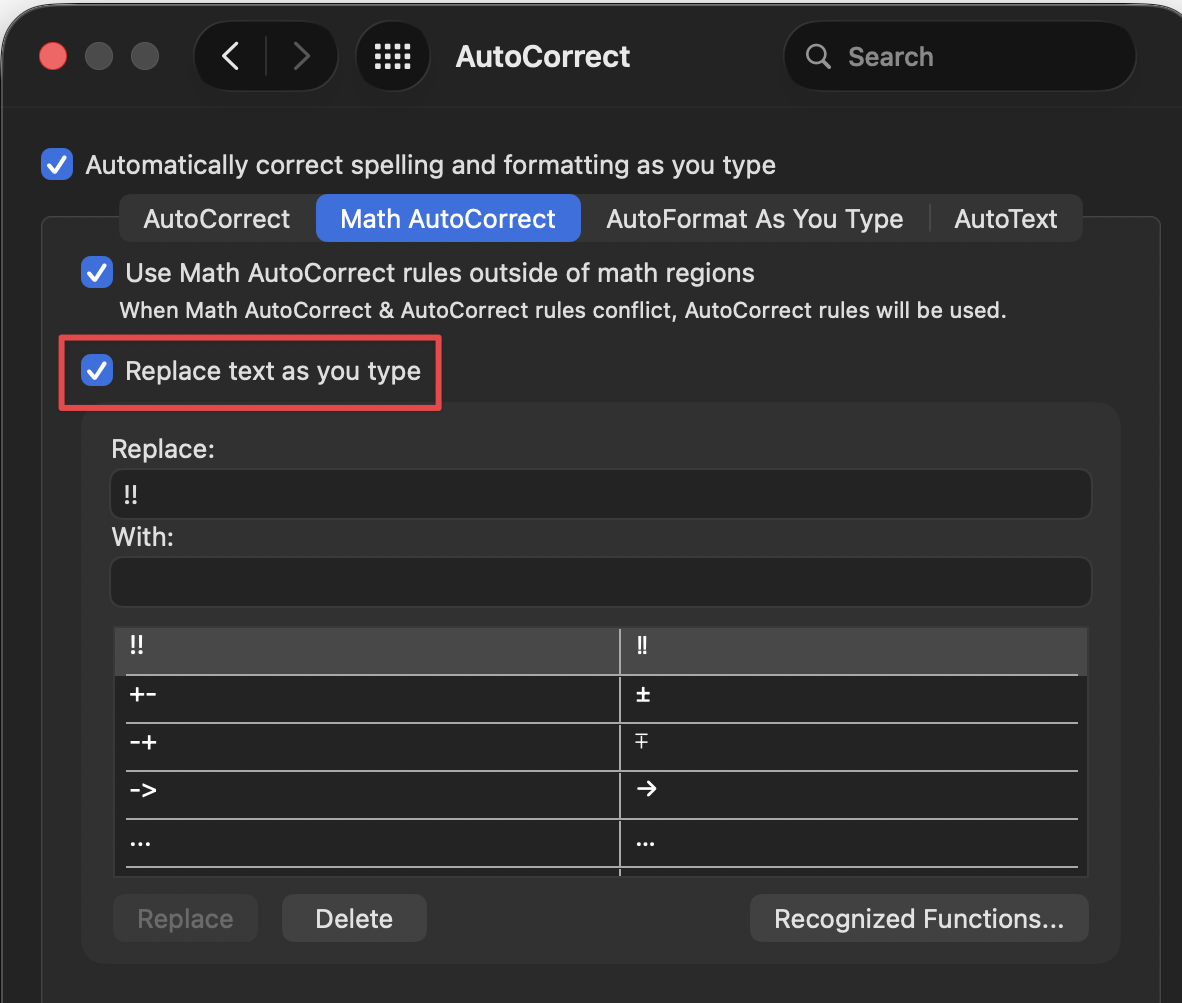
Issue: Math in PPT equation editor does NOT convert to symbols when I hit Spacebar. ↩
Cause: This tend to happen when you uncheck the auto-correct preference “Capitalize first letter of sentences”.
Fix: delete the following two folders:
~/Library/Containers/com.microsoft.PowerPoint~/Library/Group Containers/UBF8T346G9.Office
ref:
 LaTeX equation to Word
- Linear format equations using UnicodeMath and LaTeX in Word
- Equation Editor Cheatsheet
- Math Autocorrect Shortcut in Ms Word: Equation Editor Shortcut
MathML Code
🔥 When you see an equation in HTML, right-click on the equation and select “Show Math As” > “MathML Code”. You can copy the MathML code and paste it into Word’s equation editor.
Numbering equations
Add labels to eqns. There is NO elegent way to do this in Word. You have to suck it up and choose a workaround.
If you don’t want this nonsense, use LaTeX. 🔥🔥🔥
Two common options:
-
Following the equation, type
#(1)and hit enter. ↩This is the easiest way to add eqn numbers, but the numbering is static, i.e., if you add/remove equations, you have to manually update the numbers. ❌
-
Add automatically updated labels
Follow this guide. Once you added the equation table to Equation Gallery, it will be available in all Word documents.
Q: How to update cross references?
A: Select all textCmd+A, then fn +F9to update all fields.
Autonumbered equations using table
Here is a step-by-step guide to create a template that can be used to automatically generate the table and equation with number to the right:
- Insert → Table → 3x1.
- Right click table → Table Properties.
- In Table Tab, Check Preferred Width → Percent → 100.
-
In Column Tab, set preferred width to 7%, 86% and 7% for 1st 2nd and 3rd column respectively.
These values work well for Times New Roman 12pt equation numbers. (Other percentages will work provided they add up to 100%.)
- Click Ok.
- Insert → Equation into center column (type in current equation or placeholder).
-
Click References → Insert Caption.
Select Label: Equation
Position: Above or Below - Adjust numbering as desired.
- Cut and past number from above location to right column of equation table.
- Right and middle align text in right column.
- Center and middle align the equation column.
- Highlight the entire table.
- Turn off borders.
- Re-highlight the entire table.
- Select Insert → Equation → Save Selection to Equation Gallery.
Now if you want to insert an equation with automatic numbering in standard journal/conference paper format, just select the template you have made from the Equation Gallery and it will insert it into the document as desired.
Equation numbers will be automatically updated and references can be made to them using the References → Cross Reference option for equations.
NOTE: If you’d like to save this newly formatted equation as a keyboard shortcut (like pressing the Alt and + keys simultaneously in order to create a new equation), you can do so by going to File → Options → Customize Ribbon → Customize Shortcuts and then selecting “Building Blocks”. Search for your newly created equation template in the right list, then assign a keyboard shortcut to it. ← This does NOT work on Mac. Go to Tools > Customize Keyboard. I cannot find my newly created equation template in the Building Blocks list.
Web vs. Print Layout
- Print: show as if appear when printed
- Web: show as if appear on a web page, no margins, page breaks, using a continuous, scrollable page; more compact; if you don’t care about format, use web layout reduces distractions; ✅
Font
Q: If I sent a Word Word document with a font and send it to a person that hasn’t downloaded that font, will they still be able to see the document in the font I wrote it in?
A: The short answer is NO. However, you can choose to embed the font in the document. That way, if you share your document with someone else who doesn’t have the same fonts installed that you do, the fonts, layout, and styling of the document won’t change, and special characters won’t turn into meaningless rectangles.
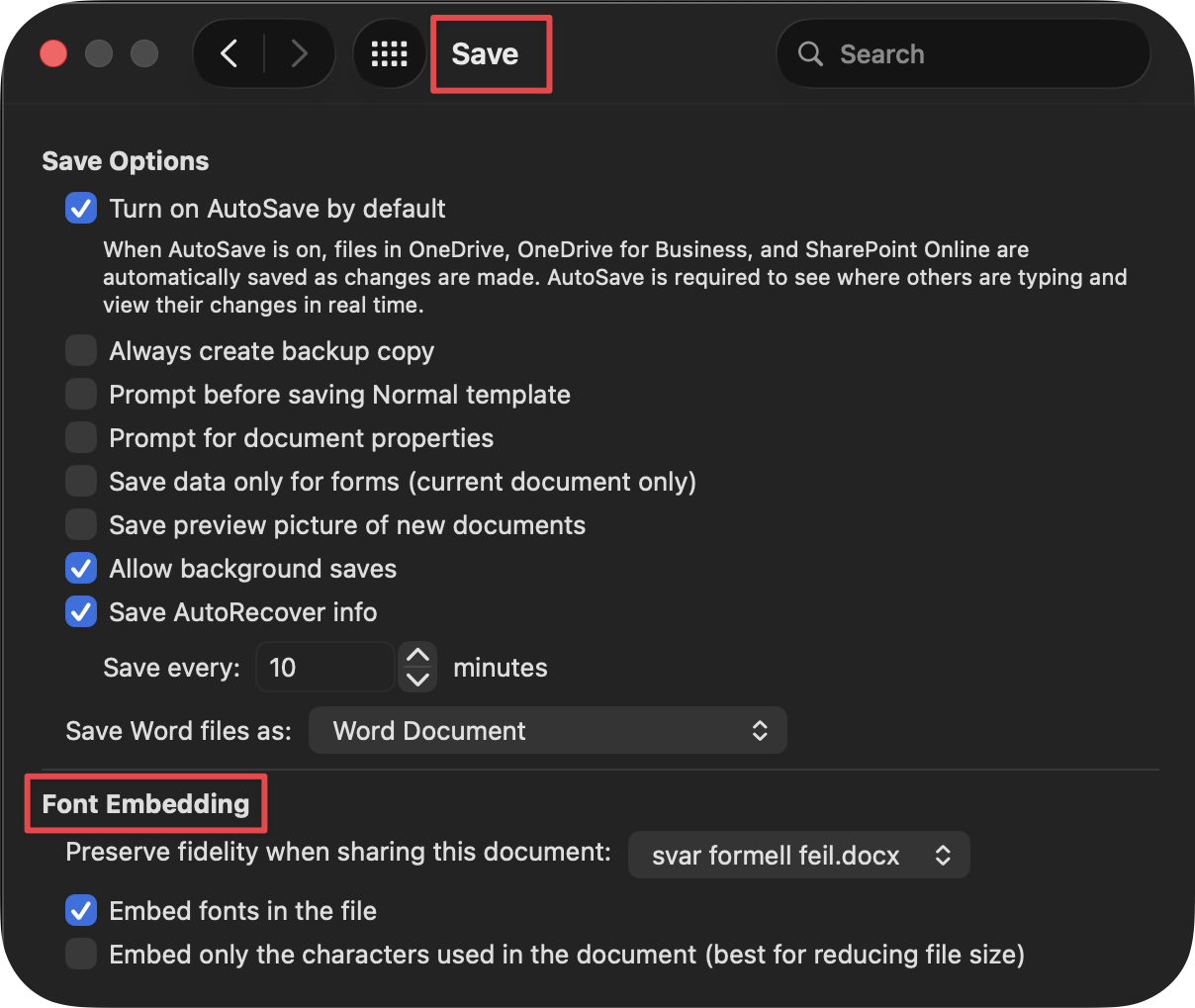
Set “Embed fonts in the file” as default in Preferences (⌘,). Only need to change once. It applies automatically to your future docx’s.
Settings > Save > Font Embedding > check “Embed fonts in the file”.
Bullet lists
Q: How to add spacing between items in a bullet list?
A: Adjust spacing before and after, uncheck “Don’t Add Space Between Paragraphs of the Same Style”.
Revision
Review > Markup Options > Balloons > “Show All Revisions Inline”.
Template
Save the files as template
Save as Template > File Format should be .dotx or .dotm
File location: ~/Library/Group Containers/UBF8T346G9.Office/User Content/Templates
Quarto support Word output format. You can provide your template and your Quarto document will be based on it. See HERE for details.
In Quarto yaml, add the following lines to specify your custom Word template (e.g., custom-reference-doc.docx):
format:
  docx:
    reference-doc: custom-reference-doc.docx
    lang: en
Page Layout
Insert Page numbers
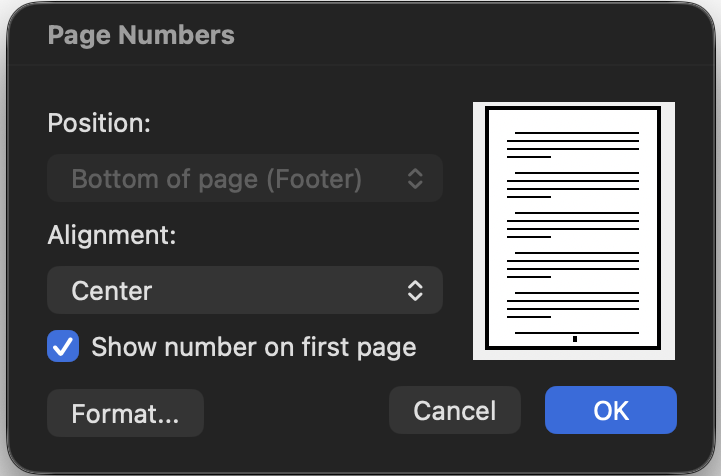
Insert > Page Number > Choose the Position and Alignment of the page number.
Header and Footer
Click the header or footer area, then a new tab “Header & Footer” will appear in the ribbon. You can choose to insert page numbers, date, time, etc.
If you want distinct header and footer for the cover page, you need to check “Different First Page” in the ribbon.

FAQ
Q: How to disable automatic capitalizing “i”?
A: Preference > AutoCorrect > Replace “i” with “i”.
Q: How to show TOC sidebar?
A: View > check “Navigation Pane”
Q: Spacing before/after has no effect, what to do?
A: Sometimes if you adjust spacing before and after, but there is no effects, you may adjust line spacing to smaller values because when line spacing is large and spacing before/after is small, the spacing before/after may be disregarded.