FactSet DuckDB
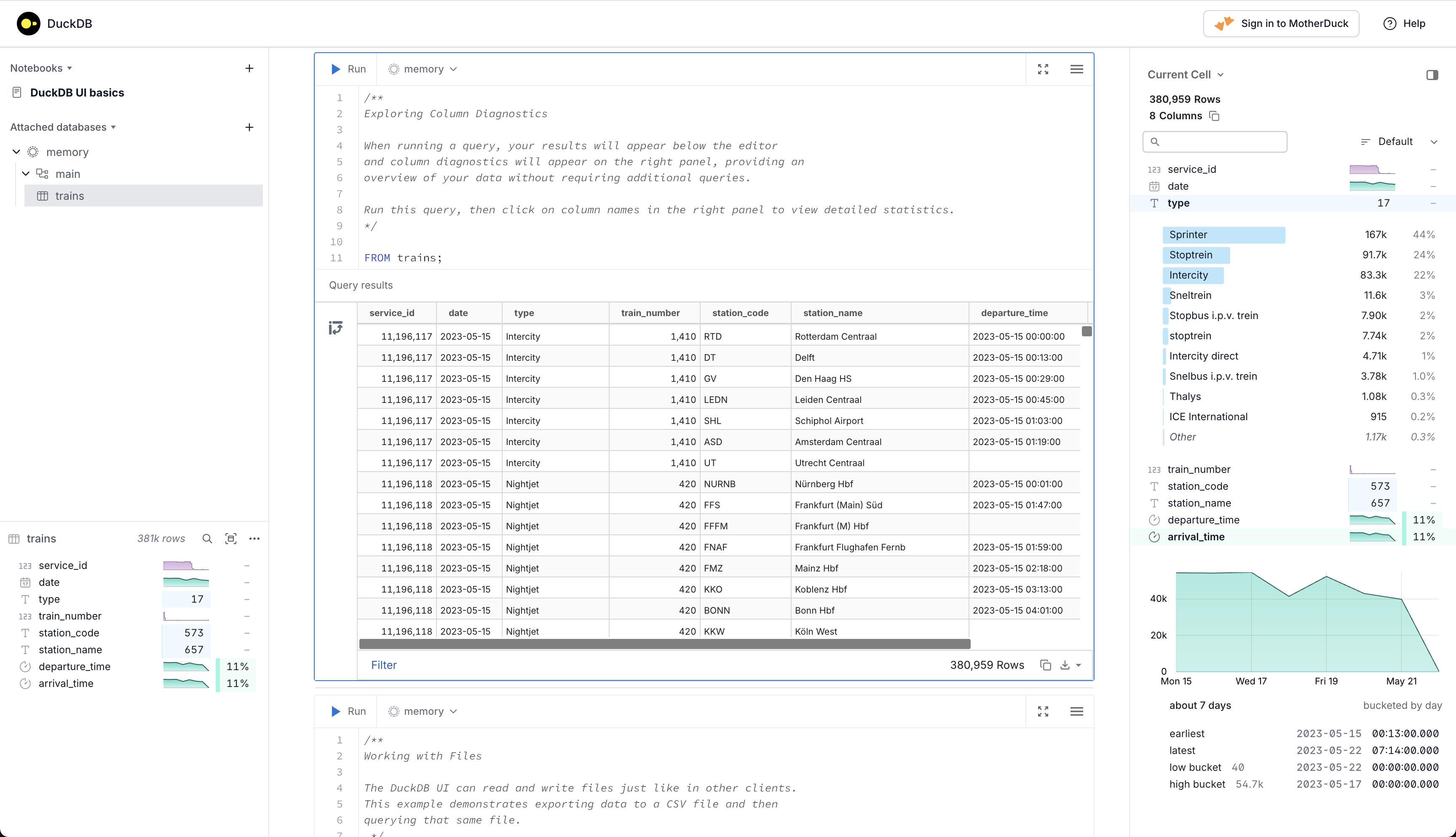
Run duckdb -ui to launch DuckDB UI in your default browser. You can run SQL queries there.
Click “Attached databases” to add a new database connection.
Fill in the connection details:
- Path: path to your DuckDB database file (usually ends with
.duckdb) - Alias (Optional): a nickname for the database connection, e.g.
FactSet
Alternatively, you can also launch the UI directly with a specific database connection using the following command:
duckdb "/Users/menghan/Desktop/FactSet Database/factset_full_v2.duckdb" -ui
This will load the specified database in the UI automatically.
Pros: Nice UI for table overview, column browsing, and query execution.
Cons: Cannot save query notebooks to local. → Use Jupyter Notebook / Python for better organization and version control.
You can run SQL queries in the Notebooks. To quit the UI, go to terminal and hit Ctrl + D.
When you have built a connection in Python, it can be convenient if you open a web UI to view the database schema and run some quick queries. However, if you have an active connection to the database in Python, the web UI will be locked in read-only mode to prevent conflicts. This means you can only open the web UI in read-only mode.
Add parameter -readonly to open the UI in read-only mode:
duckdb "/Users/menghan/Desktop/FactSet Database/factset_full_v2.duckdb" -readonly -ui
refs:
-
DuckDB SQL is a variant of PostgreSQL.
Keyboard shortcuts
| Action | Shortcut |
|---|---|
| Run Query | ⌘ Enter |
| Format Query | ⌘ ⇧ F |
| Clear Query Results | ⌘ ⇧ K |
Build a Python notebook to connect to DuckDB and run SQL queries. This way, you keep your SQL queries and data analysis in one place.
The notebooks in the web UI persiste btw sessions in the same browser on the same machine. But it’s better to use local Jupyter notebooks for better organization and version control.
Here is a Google Colab notebook example connecting to FactSet DuckDB database.
Jupyter Notebook
Create a new Jupyter notebook. In VS Code, go to Command Palette (⇧⌘P) → “Create: New Jupyter Notebook”.
See HERE for basic usage of Jupyter notebooks in VS Code.
Don’t use OneDrive to store you
.ipynbfiles, it sync prevents notebooks from saving its kernel state properly.OneDrive is rubbish. MS apps should always be avoided if possible…
Set up environment by installing necessary packages:
%conda uninstall --quiet --yes malloy
%conda install --quiet --yes --upgrade duckdb
%conda install --quiet --yes jupysql==0.11.1
%conda install --quiet --yes duckdb-engine
%conda install --quiet --yes pandas
%conda install --quiet --yes matplotlib
It will install duckdb, jupysql, duckdb-engine, pandas, matplotlib packages. It takes a while to install all packages.
jupysql allows you to run SQL and plot large datasets in Jupyter via a %sql, %%sql, and %sqlplotmagics.
Build the connection
# Connect to file backed db in read-only mode to avoid lock conflicts
conn = duckdb.connect("~/Desktop/FactSet Database/factset_full_v2.duckdb", read_only=True)

# Use the DuckDB connection
%sql conn

# Shut down the connection
conn.close()
# alternatively, using magic command
%sql --close conn
Querying DuckDB
Single line SQL queries can be run using %sql at the start of a line.
%sql SELECT 'Off and flying!' AS a_duckdb_column;
Use << to assign the result to a variable
%sql res << SELECT 'Off and flying!' AS a_duckdb_column;
An entire Jupyter cell can be used as a SQL cell by starting with %%sql. Note that the %%sql magic command applies to the entire cell, you cannot have Python code or comments in the same cell. You can only write SQL code in that cell.
By contrast, the %sql magic command can be used in a Python cell, allowing you to mix SQL and Python code in the same cell.
%%sql
-- look up price based on tickers
SELECT price.*, sym.ticker_region, cov.proper_name, p.one_day_pct as DailyReturns
FROM fp_v2.fp_total_returns_daily AS p
LEFT JOIN fp_v2.fp_basic_prices AS price
    ON price.fsym_id = p.fsym_id AND p.p_date = price.p_date
LEFT JOIN sym_v1.sym_ticker_region AS sym
    ON p.fsym_id = sym.fsym_id
JOIN sym_v1.sym_coverage AS cov
    ON sym.fsym_id = cov.fsym_id
WHERE sym.ticker_region IN ('AAPL-US','IBM-US','SPY-US','MSFT-US','GOOGL-US') -- change tickers
    AND p.p_date BETWEEN '2021-08-16' AND '2021-08-20' -- change date scope
ORDER BY p.p_date, sym.ticker_region
Query results will be displayed as a Pandas DataFrame.
One liner vs. Cell magic
Both blocks save the query result to a variable fsym_ids. The first block uses %sql for a single line query, while the second block uses %%sql for a multi-line query.
%sqlis more flexible as it allows you to mix SQL and Python code; but it is hard to read as you have to write the entire SQL query in one line, which can be messy and hard to debug.%%sqlis cleaner and more readable for longer SQL queries, but you cannot have any Python code or comments in the same cell.
✅ Just use %%sql for better readability. Do NOT put any comments above.
# Based on ticker-region, find fsym_id
fsym_ids = %sql SELECT cov.*, tr.ticker_region FROM sym_v1.sym_coverage AS cov LEFT JOIN sym_v1.sym_ticker_region AS tr ON tr.fsym_id = cov.fsym_regional_id WHERE tr.ticker_region IN ()
%%sql fysm_ids <<
SELECT cov.*, tr.ticker_region
FROM sym_v1.sym_coverage AS cov
LEFT JOIN sym_v1.sym_ticker_region AS tr
    ON tr.fsym_id = cov.fsym_regional_id
WHERE tr.ticker_region IN ()
py script
Using python scripts is easier for version control. The syntax is a bit different from Jupyter notebooks, you cannot use magic commands.
Build connection
import duckdb

# Create connection to the database file
# `read_only=True` to avoid lock conflicts with the web UI
conn = duckdb.connect("~/Desktop/FactSet Database/factset_full_v2.duckdb", read_only=True)
Run Queries
# Write SQL query as a Python f-string
query1 = f"""
SELECT
    fsym_id,
    date,
    ff_capex_fix,
    ff_cash_generic
FROM ff_v3.ff_advanced_af AS ff
WHERE ff.fsym_id IN ({fsym_list})
  AND ff.date BETWEEN '{start}' AND '{end}'
"""

# Execute query and convert to pandas DataFrame
res1 = conn.execute(query1).df()
- Use f-string (
f"""...""") to insert Python variables into SQL conn.execute(query)runs the SQL query.df()converts the result to a pandas DataFrame- Variables like
{fsym_list},{start},{end}are substituted with their Python values
Close the connection when done
conn.close()
SQL Syntax
First 10 rows from a table:
SELECT *
FROM client.rus3000_prc_data
LIMIT 10