3.10 Render Jupyter notebook
You can use quarto to convert Jupyter notebooks (.ipynb) to other formats such as HTML, PDF, or Markdown. It uses the document YAML to decide which format to convert to.
In your Jupyter notebook:
In terminal, run the following command to render the notebook:
You cannot have a R script with the same name as your notebook in the same directory. Otherwise, your notebook will not render properly.
You can specify multiple formats in a markdown cell of your notebook:
Then when you run quarto render notebook.ipynb in Terminal, it will generate both HTML and PDF outputs.
Note that when rendering an .ipynb Quarto will NOT execute the cells within the notebook by default.
The presumption is that you have already executed them while editing the notebook.
Add theme to your notebook by specifying the theme in the YAML header:
---
title: "Jupyter Notebook with R Kernel"
format:
  html:
    theme:
      light: flatly
      dark: darkly
    respect-user-color-scheme: true
  pdf: default
---
3.10.1 Re-execute before render
Re-execute code chunks when rendering a Jupyter notebook
Note: it requires a whole set of setup to make --execute work.
If you don’t bother to setup, a workaround is to manually run the notebook in Jupyter and then render it with quarto render notebook.ipynb.
Q: When you really want --execute?
A: You render frequently to ensure the output is what you expect.
By default, Quarto will not execute the cells in the notebook when rendering.
If you want to re-execute the cells you can pass the --execute flag to render:
Three things to setup before you can use --execute:
Insert
metadata.kernelspec.pathto the notebook metadata to avoid path error.jq '.metadata.kernelspec.path = "/Users/menghan/Library/Jupyter/kernels/ir"' \ <notebook>.ipynb | sponge <notebook>.ipynbCheck the path for IR kernelspec HERE.
In
~/.zshrc, setQUARTO_PYTHONto point to the Python environment where Jupyter is installed.You have to check the path per machine and per Python environment.
IN
~/.Renviron, setQUARTO_PYTHONto the same Python environment in Step 2.
See below for details. If you don’t need to re-execute the notebook, you can skip these steps. quarto render notebook.ipynb will simply render the notebook without executing the cells.
Path error when rendering .ipynb file with quarto --execute:
quarto render 07_Lab-2_dummy-variable.ipynb --execute --log-level=DEBUG
Quarto version: 1.7.31
projectContext: Found Quarto project in /Users/menghan/Library/CloudStorage/OneDrive-Norduniversitet/FIN5005 2025Fall/course_web
Loaded deno-dom-native
[execProcess] python /Applications/quarto/share/capabilities/jupyter.py
[execProcess] Success: true, code: 0

Starting ir kernel...[execProcess] /Users/menghan/anaconda3/bin/python /Applications/quarto/share/jupyter/jupyter.py
[execProcess] Success: true, code: 0
ERROR:

path
[NotebookContext]: Starting Cleanup
The root cause is Quarto’s own notebook runner (Applications/quarto/share/jupyter/notebook.py). Quarto looks for a language-specific helper directory under Applications/quarto/share/jupyter/lang. These are small setup/cleanup templates Quarto injects around notebook execution.
My notebook specifies the R kernel, but there is no helper directory for R under Applications/quarto/share/jupyter/lang. There are only helper directories for Python and Julia by default.
Fix: In your notebook’s metadata, add metadata.kernelspec.path pointing to your installed IR kernelspec directory.
Q: How to find the IR kernelspec directory?
Active the Python environment where you installed Jupyter and IRkernel.
Run the following command to list all installed kernelspecs and their paths.
# Intel MBP16
$jupyter kernelspec list
Available kernels:
ir            /Users/menghan/Library/Jupyter/kernels/ir
powershell    /Users/menghan/Library/Jupyter/kernels/powershell
python3       /Users/menghan/.local/share/jupyter/kernels/python3
Both Intel and M-series MBP have the same path for IR kernel:
/Users/menghan/Library/Jupyter/kernels/ir.
Before modification:
After modification:
{
  "metadata": {
     "kernelspec": {
      "display_name": "R",
      "language": "R",
      "name": "ir",
      "path": "/Users/menghan/Library/Jupyter/kernels/ir"
     },
  }
}
Use jq and sponge to modify the notebook metadata:
Install
moreutils(forsponge) if you don’t have them:Usually
jqis already installed on MacOS. If not, install it withbrew install jq.Use
jq --versionto check if you have it installed.
Run the following command to update the notebook metadata.
Replace
<notebook>with your notebook file name:
/Users/menghan/Library/Jupyter/kernels/ir is Jupyter’s default location for the IR kernel.
Quarto’s shipped helper directory are lowercase names like python and julia. But in R notebook’s metadata (metadata.kernelspec.language and metadata.language_info.name), the language name is capitalized as R.
This mismatch will cause Quarto to fail to find the helper directory for R.
When kernelspec path is set correctly, if you run quarto render <notebook>.ipynb --execute, it will show the following output in the terminal:
$quarto render "jupyter-r.ipynb" --execute

Starting ir kernel...Done

Executing 'jupyter-r.ipynb'
  Cell 1/9: ''...Done
  Cell 2/9: ''...Done
  Cell 3/9: ''...Done
  ...
Troubleshooting: ModuleNotFoundError like the following
ModuleNotFoundError: No module named 'yaml'
Python 3 installation:
  Version: 3.14.7 (Conda)
  Path: /Users/menghan/Library/CloudStorage/OneDrive-Norduniversitet/FIN5005/.conda/bin/python
  Jupyter: (None)

Jupyter is not available in this Python installation.
Install with conda install jupyter
Cause: If you have multiple virtual environments, Quarto may be using a different Python environment than the one you installed Jupyter in.
Fix: Specify QUARTO_PYTHON environment variable to point to the Python environment where Jupyter is installed.
Add the following to your ~/.zshrc file:
# Quarto's Jupyter engine needs a Python with pyyaml + the jupyter stack.
# Auto-activated project envs are often bare, and quarto would otherwise
# pick them off PATH. QUARTO_PYTHON overrides that detection.
export QUARTO_PYTHON=/Users/menghan/anaconda3/bin/python
Use quarto check jupyter to verify that Quarto is using the correct Python environment.
$quarto check

Quarto 1.7.31
[✓] Checking environment information...
      Quarto cache location: /Users/menghan/Library/Caches/quarto
[✓] Checking versions of quarto binary dependencies...
      Pandoc version 3.6.3: OK
      Dart Sass version 1.85.1: OK
      Deno version 1.46.3: OK
      Typst version 0.13.0: OK
[✓] Checking versions of quarto dependencies......OK
[✓] Checking Quarto installation......OK
      Version: 1.7.31
      Path: /Applications/quarto/bin

[✓] Checking tools....................OK
      TinyTeX: (not installed)
      Chromium: (not installed)

[✓] Checking LaTeX....................OK
      Using: Installation From Path
      Path: /Library/TeX/texbin
      Version: 2026

[✓] Checking Chrome Headless....................OK
      Using: Chrome found on system
      Path: /Applications/Google Chrome.app/Contents/MacOS/Google Chrome
      Source: MacOS known location

[✓] Checking basic markdown render....OK

[✓] Checking Python 3 installation....OK
      Version: 3.11.4 (Conda)
      Path: /Users/menghan/anaconda3/bin/python
      Jupyter: 5.3.0
      Kernels: ir, powershell, python3

[✓] Checking Jupyter engine render....OK

[✓] Checking R installation...........OK
      Version: 4.5.1
      Path: /Library/Frameworks/R.framework/Resources
      LibPaths:
        - /Library/Frameworks/R.framework/Versions/4.5-x86_64/Resources/library
      knitr: 1.50
      rmarkdown: 2.30

[✓] Checking Knitr engine render......OKConfigure R to use the same Python environment as Quarto’s Jupyter engine
It is possible to use quarto::quarto_render() in R to render a Jupyter notebook. You need to specify the correct Python environment in ~/.Renviron.
Then you can use execute = TRUE to re-execute the notebook and render it.
# render jupyter notebook in R
library(quarto)

# this won't re-execute the notebook, it will just render the notebook with the current output
quarto_render("jupyter-r.ipynb")

# re-execute the notebook and render it
quarto_render("jupyter-r.ipynb", execute = TRUE)
If you need a system-wide fix, you can add a patch to Quarto’s notebook.py file to handle the R kernel. But this solution is brittle and will be overwritten when Quarto is updated.
Add a Quarto helper directory for R (in Applications/quarto/share/jupyter/lang), so that metadata.kernelspec.path is set to “/Users/menghan/Library/Jupyter/kernels/ir”.
Or is it possible to change the Jupyter template to add metadata.kernelspec.path when creating a new notebook?
To be continued …
At the moment, I just manually add the metadata.kernelspec.path to the notebook metadata after creating a new notebook.
3.10.2 Code cell modes
Three code modes in Jupyter notebooks:
Unselected: When no bar is visible, the cell is unselected.

Selected: When a cell is selected, it can be in command mode or in edit mode.
Command mode: solid vertical bar on the left side of the cell.
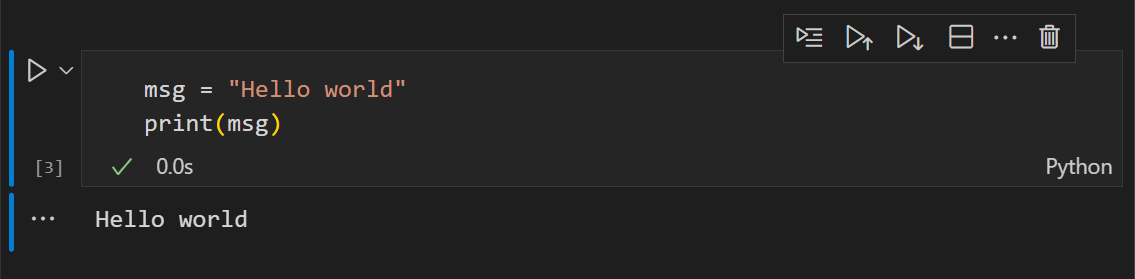 The cell can be operated on and accepts keyboard commands.
Hit Enter to enter edit mode, or click on the cell to enter edit mode.
Edit mode: a solid vertical bar is joined by a blue border around the cell input editor.
 Press Escape to return to command mode, or click outside the cell to return to command mode.
3.10.3 Keyboard shortcuts
Command Palette, type “Preferences: Open Keyboard Shortcuts” to open the keyboard shortcuts editor. You can search for “jupyter” to find all Jupyter-related commands and their shortcuts.
Run code cells
| Shortcut | Function |
|---|---|
Ctrl+Enter |
runs the currently selected cell; focus stays on the current cell |
Shift+Enter |
runs the currently selected cell and focus moves to new cell. |
Opt+Enter |
runs the currently selected cell and inserts a new cell immediately below (focus moves to new cell). |
| Run Cells Above | Command Palette, type “Notebook: Execute Above Cells” |
There is no executing current cell and moving focus to the next cell shortcut, you need to first run the current cell with Ctrl+Enter, then hit the down arrow key ↓ to move focus to the next cell.
I added one keyboard shortcut for this: cmd+Enter to run the current cell and move focus to the next cell. This works for both command mode and edit mode.
{
  "key": "cmd+enter",
  "command": "notebook.cell.executeAndSelectBelow",
  "when": "notebookEditorFocused"
}
Insert code cells
Under command mode (no thin blue border around the input cell, one thick vertical bar on the left):
| Shortcut | Function |
|---|---|
ctrl+; A |
Press Ctrl+;, release, then A.Insert a new code cell above the current one. |
ctrl+; B |
Add a new code cell below the selected one. |
Note: On my Mac, I just need to hit ESC to enter command mode, then A or B to insert a new cell above or below the current cell. No need to hit Ctrl+; first.
Change Cell to Code
| Shortcut | Function |
|---|---|
cmd mode: Y |
Change cell to code |
cmd mode: M |
Change cell to Markdown |
Miscellaneous
| Shortcut | Function |
|---|---|
ctrl+; X or dd |
Delete selected cells |
shift + ↑/↓ |
Select consecutive multiple cells |
L |
command mode; toggle line numbers |
R |
Undo last change |
ref:
3.10.4 Load packages silently
# -------- Setup: packages --------
# Unified required package list
pkgs <- c("tidyverse", "data.table", "ggsci", "moments", "knitr", "kableExtra", "IRdisplay")
missing <- setdiff(pkgs, rownames(installed.packages()))
if (length(missing) > 0) install.packages(missing)

# Load all packages (silently)
invisible(lapply(pkgs, function(pkg) {
  suppressWarnings(suppressPackageStartupMessages(library(pkg, character.only = TRUE)))
}))

# Set default options for figures in Jupyter Notebook
options(repr.plot.width = 12, repr.plot.height = 4)  # wider default figures

message("\nSetup complete (packages loaded: ", paste(pkgs, collapse = ", "), ").")
3.10.5 Chunk Options
Use Quarto’s way #| to specify chunk options in Jupyter notebooks.
These chunk options will not show up in the notebook rendered output, but they will control the behavior of the code cell and its output.
#| echo: false
#| message: false
#| warning: false

# generate a plot
p <- ggplot(mtcars, aes(x = wt, y = mpg)) +
  geom_point() +
  theme_bw(base_size = 16)
p
3.10.6 Insert Image
The built-in image rendering in Jupyter notebooks is not very flexible. It renders images using the default width and height (about 50% of page width and almost square), which might be too large or too small for your needs, and very often, you want a specific aspect ratio.
Save and load images
For precise control over the size of the image and best display quality, the best option is to save the image to a file and then load it into the notebook with controlled width.
Generate the image and save it to a file, e.g.,
temp-plot.pngSpecify the width and height in inches.
Load the image with relative width.
Use markdown syntax. ✅
This supports both HTML and PDF output.
Alternatively, use
IRdisplay::display_html()#| echo: false # Display the image with controlled width using HTML library(IRdisplay) display_html(paste0('<img src="', f_name, '" style="width: 70%; height: auto;">')) # center the image display_html(paste0('<div style="text-align: center;"><img src="', f_name, '" style="width: 70%; height: auto;"></div>'))IRdisplayhas adisplay_png()function, but you have to specify the width and height in pixels, which is not ideal. ❌Q: Why absolute width in pixels/inches is not ideal?
A: For one, it is hard to know which size is suitable. Secondly, pixels depend on the DPI/PPI of the output device. Higher DPI/PPI will make the image smaller, while lower DPI/PPI will make the image larger. → Just tricky to control with absolute width.
Big image
- html: scrollable image container
- pdf: 100% page width
Create a markdown cell and add the following fenced div:
::: {.content-visible when-format="html"}
::: {.scroll-img}
{width=120%}
:::
:::
::: {.content-visible when-format="pdf"}
{width=100%}
:::Define scroll-img class in your CSS file to make the image scrollable when it exceeds the page width:
// Make images wider than container scrollable with horizontal overflow
.scroll-img {
  overflow-x: auto;
}

.scroll-img img {
  max-width: none;
  display: block;
}
Control plot size as you plot
Use R options (
repr) to control the size of plots in Jupyter notebooks output cell and the output document.Set
repr.plot.widthandrepr.plot.heightoptions to control the width and height of plots in inches. This will affect all subsequent plots in the notebook. → NOT good. ❌If you specify
repr.plot.widthwider than the page width (> 8.25 inches for A4 page), the plot will be cropped in the output document. ❌Another caveat is that the figure element does NOT scale proportionally with the figure size. ❌
Just too many limitations of using
repr.plot.widthandrepr.plot.heightto control the size of plots in Jupyter notebooks. → NOT recommended. ❌It is best to save the plot to a file and then load it into the notebook with controlled width. ↩︎
Chunk options to control the size of plots will be ignored in Jupyter notebooks.
❌ The following chunk options will NOT work in Jupyter notebooks:
ref:
repr options
repr options are used to control the behavior of repr when not calling it directly. Use options(repr.* = ...)and getOption('repr.*') to set and get them, respectively.
Once repr package is loaded, all options are set to defaults which weren’t set beforehand.
repr.plot.*: representations of recordedplot instances
| Options | Descriptions |
|---|---|
repr.plot.width |
Plotting area width in inches (default: 7 in) |
repr.plot.height |
Plotting area height in inches (default: 7 in) |
repr.plot.pointsize |
Text height in pt (default: 12) |
repr.plot.res |
PPI for rasterization (default: 120) |
This works but is not ideal as the plot element is not adjusted proportionally. Text size is too large for the small plot and might be cropped. ❌
Other output representations
| Options | Descriptions |
|---|---|
repr.matrix.max.rows |
How many rows to display at max. Will insert a row with vertical ellipses to show elision. (default: 60 rows, first and last 30 rows) |
repr.matrix.max.cols |
How many cols to display at max. Will insert a column with horizontal ellipses to show elision. (default: 20) |
See repr CRAN for all available options.
3.10.7 Print Table
By default, Jupyter notebooks will print the table as a plain text output, which is not very readable. You can use IRdisplay::display_html() to display the table as an HTML table, which is more readable and allows you to control the formatting.
library(IRdisplay)
library(knitr)

results <- lapply(asset_df, quick_summary) %>%
    do.call(rbind, .) %>%
    kable(
      format = "html",
      digits = 2,
      caption = "Descriptive Statistics of Asset Returns"
    )

# as.character() is needed to convert the kable object to a character string, which can be passed to display_html()
display_html(as.character(results))
IRdisplay::display_html() print html as it is, equivalent to results="asis" chunk option in R Markdown.
- One additional benefit is that it will print LaTeX table when your output format is PDF. → PDF robust. ✅
Show numbers in percent
scales::percent(x, accuracy) takes a numeric vector x and returns a character vector with the values formatted as percentages.
accuracy: a number to round to. For example,accuracy = 0.01will round to the nearest 0.01 (1%).
will format columns between min and sd as percentages with 2 decimal places.
Note: scales is a dependency of tidyverse, so you don’t need to install it separately if you have tidyverse installed. However, you need to load it with library(scales) to use the percent() function. When you have library(tidyverse), it won’t load scales automatically, so you need to load it explicitly.
Another common use case is to format ggplot2 axis labels as percentages. You can use scale_y_continuous(labels = scales::percent_format) to format the y-axis labels as percentages.
library(ggplot2)

df <- data.frame(
  x = 1:4,
  y = c(0.15, 0.30, 0.45, 0.60)
)

ggplot(df, aes(x, y)) +
  geom_line() +
  scale_y_continuous(
    labels = scales::percent_format()
  ) +
  theme_minimal(base_size = 14)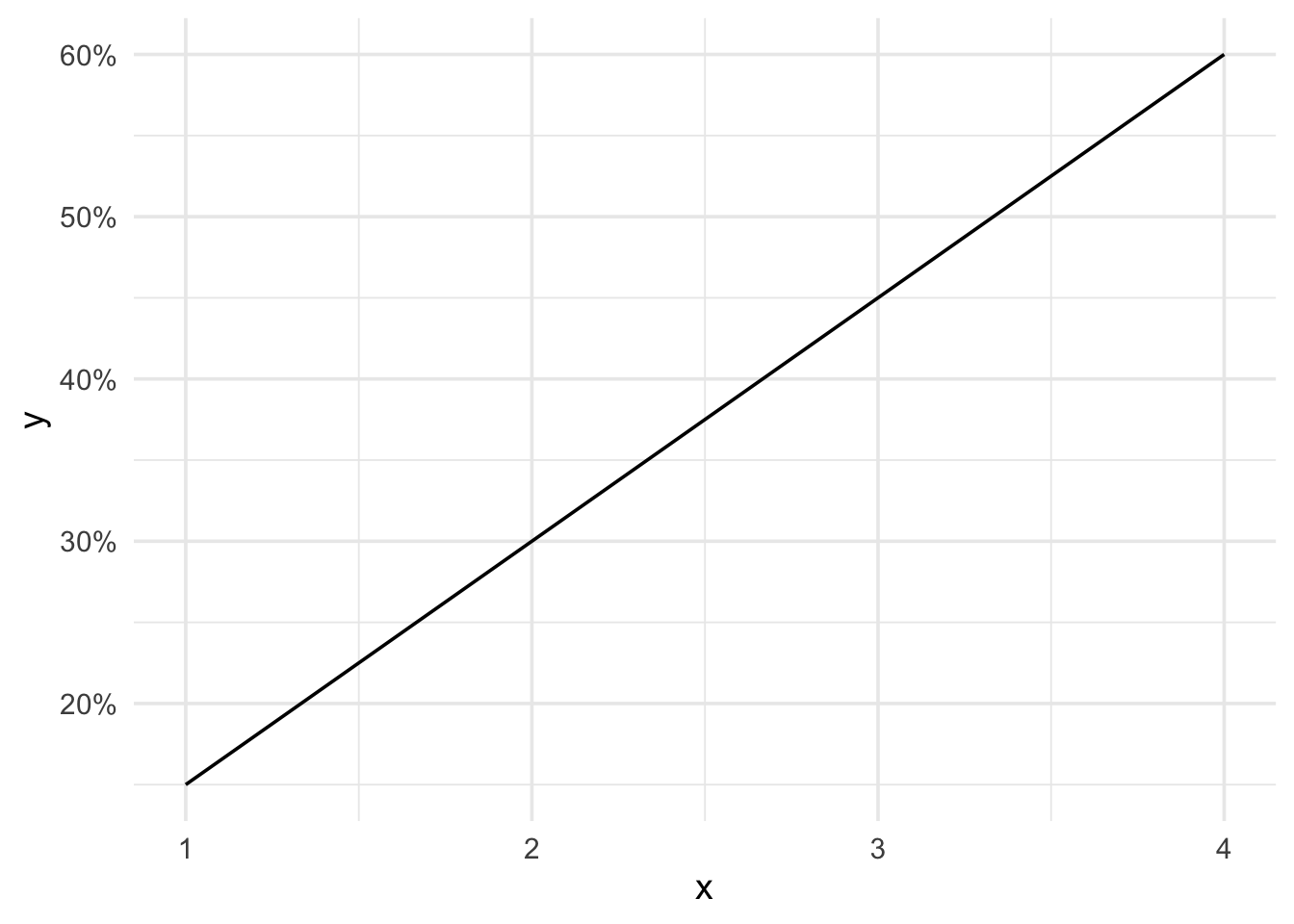
If you want provide specific LaTeX options to kable() and kable_styling(), you can use IRdisplay::publish_mimebundle() to provide both HTML and LaTeX versions of the table.
It saves a bundle of different formats (called MIME types) for that single output, and then lets the viewing environment decide which one to use.
publish_mimebundle() takes a named list of MIME types and their corresponding content. For example, you can provide both an HTML version and a LaTeX version of the same table, and the Jupyter frontend will automatically choose which one to render based on the current environment.
text/html: raw HTML codetext/latex: raw LaTeX code
summary_df <- lapply(asset_df, quick_summary) %>%
    do.call(rbind, .)

# HTML styling
html_table <- kable(summary_df, format = "html", digits = 2,
    caption = "Descriptive Statistics of Asset Returns")

# LaTeX styling
latex_table <- kable(summary_df, format = "latex", digits = 2,
    booktabs = TRUE, linesep = "",
    caption = "Descriptive Statistics of Asset Returns") %>%
    kable_styling(latex_options = "scale_down")

# Jupyter frontend automatically decides which one to render based on the current environment
publish_mimebundle(list(
    'text/html' = as.character(html_table),
    'text/latex' = as.character(latex_table)
))
For LaTeX tables:
booktabs = TRUE, linesep = ""removes extra spacing every five rows.latex_options = "scale_down"scales down the table to fit within the page width → Useful for wide tables. Otherwise, the table will be cropped if it exceeds the page width.
3.10.8 View data frames
Jupyter Notebook comes with a built-in Data Viewer. Choose ‘Jupyter Variables’ in the menu bar on the top, if you don’t see it, click the ‘…’ button to find it. It will show you all the variables in the terminal panel.

Tou can double-click a variable to open it in the Data Viewer. It provides a spreadsheet-like interface to view the data.
You can filter, sort, and search the data in the Data Viewer.
Data Wrangler
Use Data Wrangler extension to view data frames in a spreadsheet-like interface.
Launch Data Wrangler from a Jupyter Notebook
If you have a Pandas data frame in your notebook, you’ll now see an Open ‘df’ in Data Wrangler button (where df is the variable name of your data frame) appear in bottom of the cell after running any of df.head(), df.tail(), display(df), print(df), and df.
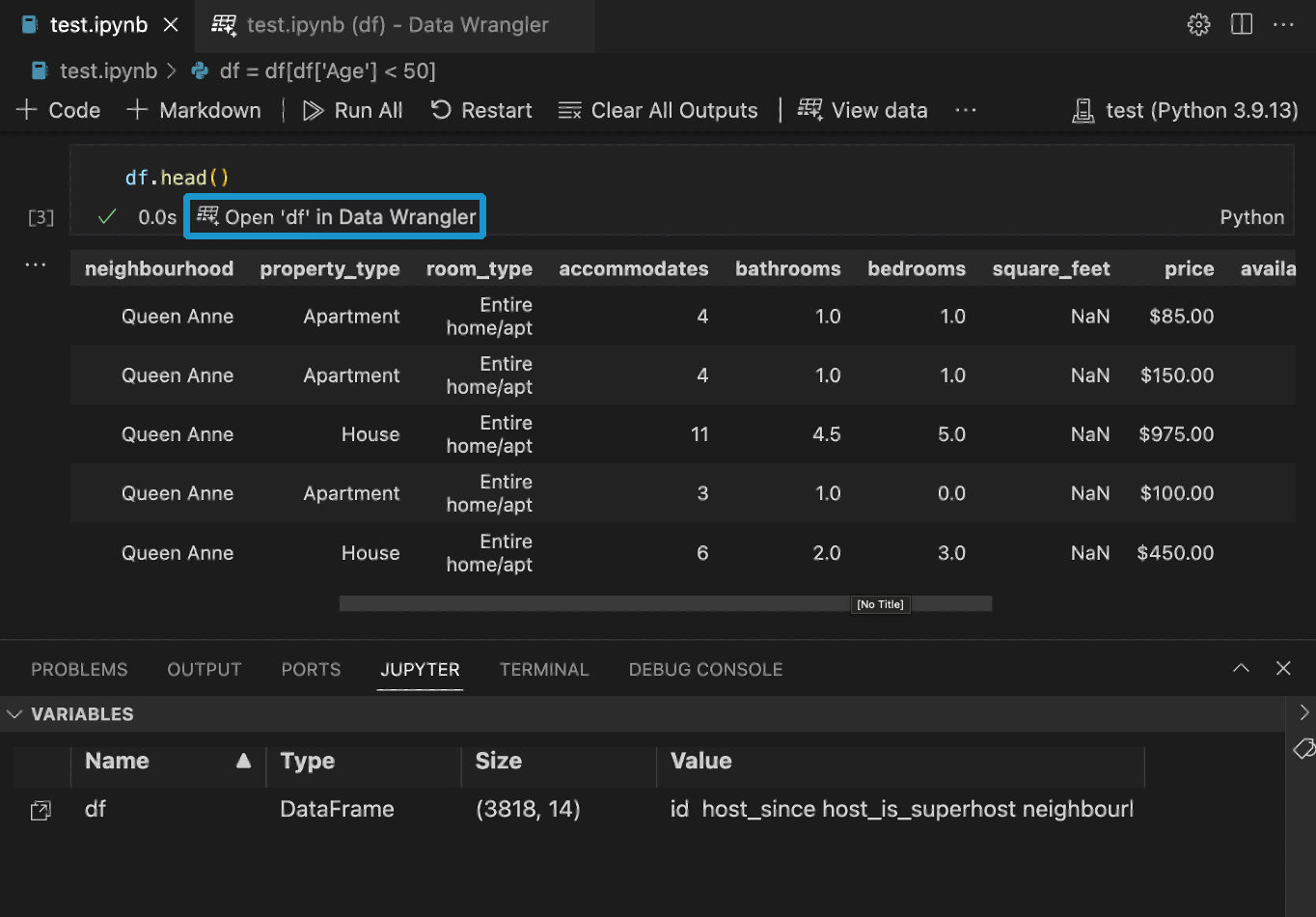
You can also launch Data Wrangler directly from a local file (such as a .csv). Right-click the file in the File Explorer and select Open in Data Wrangler.
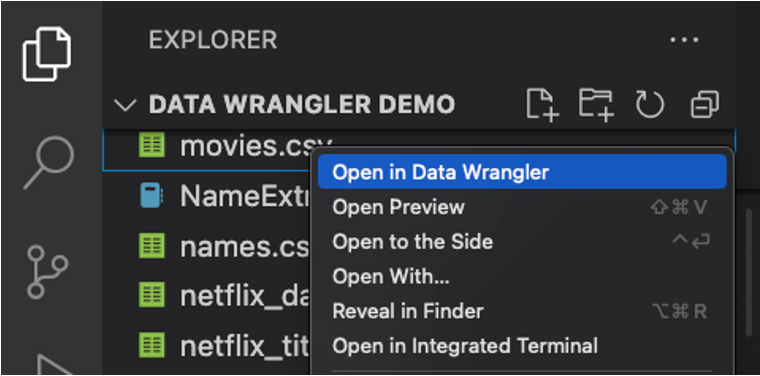
ref: Quick Start Guide for Data Wrangler in VS Code
3.10.9 Export Jupyter notebook
You can export Jupyter notebooks to various formats, including Python scripts (.py), HTML, PDF, and more.
Refer to this post
The exported .py file will have “Run Cell”, “Run Below”, etc. This is due to # %% cell markers in the exported .py file. But they don’t interfere with the execution of the code in the .py file. Besides, I actually like these segmentation as they organize the code into sections and make it easier to run code in chunks. These features are useful when you run the .py file in an interactive window.
The trick part is you need to deal with the magic commands manually. .py files don’t support magic commands, so you need to remove them or replace them with equivalent python code.