3.3 Radian
Q: There is no syntax highlighting in the R terminal. How to fix it?
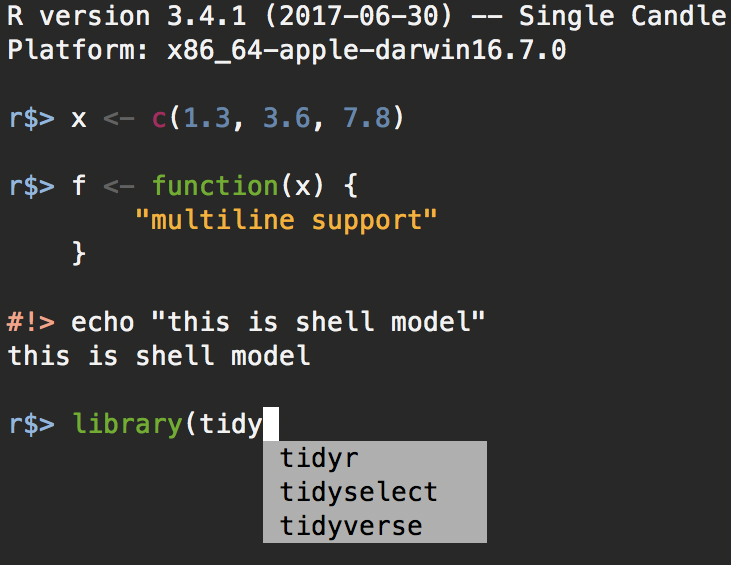
A: Install Radian, an improved R console REPL (Read-Eval-Print-Loop) interface that corrects many limitations of the official R terminal and supports many features such as syntax highlighting and auto-completion.
Q: What is REPL?
A: An interactive programming environment that takes single user inputs (i.e., reads), evaluates them, and returns the result to the user (i.e., prints) and loops back to wait for the next input.
Q: How to install Radian?
A: In the terminal, run
$pipx install radian

installed package radian 0.6.15, installed using Python 3.13.5
These apps are now globally available
    - radian
⚠️  Note: '/Users/menghan/.local/bin' is not on your PATH environment variable. These apps will not be globally accessible until your PATH is updated. Run `pipx ensurepath` to automatically add it, or manually modify your PATH in your shell's config file (e.g. ~/.bashrc).
done! ✨ 🌟 ✨
$pipx ensurepath
/Users/menghan/.local/bin has been been added to PATH.
You will need to open a new terminal or re-login for the PATH changes to take effect. Alternatively, you can source your shell's config file with e.g. 'source ~/.bashrc'.N.B. If you have zsh as your shell, you need to run source ~/.zshrc instead of source ~/.bashrc.
To find where radian is installed, you can run:
This is the path to the radian executable.
After adding Radian to your PATH, you can invoke it in the terminal by simply typing radian.
$radian
R version 4.3.1 (2023-06-16) -- "Beagle Scouts"
Platform: aarch64-apple-darwin20 (64-bit)

r$>
Then, in VS Code, you will need to set Radian as the default R terminal. You can also configure other settings for R.
Add the following settings to your settings.json file:
{
  /* R settings */
  "r.rterm.mac": "/Users/menghan/.local/bin/radian",
  "r.bracketedPaste": true,
  "r.sessionWatcher": true,
  "r.plot.useHttpgd": true,
  "[r]": {
    "editor.defaultFormatter": "REditorSupport.r",
    "editor.formatOnType": true
  },
  "r.formatting.style": "styler",
}
Options:
r.rterm.mac: Path to the Radian executable.r.bracketedPaste: Enables bracketed paste mode, which allows pasting code without executing it immediately. This is useful if you want to paste multiple lines of code into the console at once.r.sessionWatcher: Enables session watcher to monitor the R session. Specifically,- Show value of session symbols on hover
- Show plot output on update and plot history
- Show htmlwidgets, documentation and shiny apps in WebView
r.alwaysUseActiveTerminal: always send code to active terminal rather thanvscode-R; helps me to start an R session which is terminated when VSCode exits.r.plot.useHttpgd: Use the httpgd package for viewing plots in a VS Code window or in the browser.Language-specific editor settings for R files:
Prerequisite: install
stylerpackage in R.Use
stylerfor code formatting, and set the default formatter toREditorSupport.r.REditorSupport.randstylerare able to identify specific R syntax, e.g.,%>%and|>as pipe operators, and will format the code accordingly. By contrast, the default formater in VS Code does not recognize these operators and fails to auto indent after a pipe operator."editor.formatOnType": truewill trigger formatting as you type.
See Extension Settings for a full list of settings of vscode-R that can be set in VSCode’s settings.json file.
3.3.1 Configuration
Radian can be customized by specifying the below options in various locations:
$HOME/.config/radian/profile.radian_profilein the working directory
After creating/editing the profile file, restart Radian to apply the changes.
Example of a radian profile
# either  `"emacs"` (default) or `"vi"`.
options(radian.editing_mode = "vi")

# enable various emacs bindings in vi insert mode
options(radian.emacs_bindings_in_vi_insert_mode = TRUE)

# show vi mode state when radian.editing_mode is `vi`
options(radian.show_vi_mode_prompt = TRUE)
options(radian.vi_mode_prompt = "\033[0;34m[{}]\033[0m ")

# custom key bindings
options(
    radian.escape_key_map = list(
        list(key = "-", value = " <- "),
    ),
    radian.ctrl_key_map = list(
        list(key = "p", value = " %>% ")
    )
)
Insert pipe operator
%>%by pressingCtrl+PInsert assignment operator
<-by pressingEsc+-But this does not work when Vim is enabled as it interferes with Vim’s normal mode.
VI support by radian:
options(radian.editing_mode = "vi"): set the default editing mode to vi.options(radian.show_vi_mode_prompt = TRUE): This option will show the current vi mode in the prompt when usingradianin vi mode. The prompt will be colored blue and will display the current mode.[ins]: insert mode[nav]: normal mode
Q: How to restart Radian?
A: Run rstudioapi::restartSession() in the R terminal.
You can define a function to restart Radian.
In .Rprofile, add the following function definition:
# restart function, convenient in radian
restart <- function() {
    getOption("rchitect.py_tools")$attach()
    os <- import("os")
    sys <- import("sys")
    os$execv(sys$executable, c("sys$executable", "-m", "radian"))
}
This snippet use Python to use os.execv() to replace the current process with a new instance of Radian. When you call restart(), it will effectively restart Radian without needing to close and reopen the terminal manually.
This is more robust than rstudioapi::restartSession().
Issue: the restart() function, cannot use rstudioapi:: functions.
Workaround: Close R and create a new R terminal manually or use rstudioapi::restartSession().
Autocompletion
Radian provides autocompletion for R code.
Use ↑/↓ to navigate through the autocomplete suggestions, use → to select the suggestion.
3.3.2 Data Viewer
You can view objects in the workspace by clicking the R icon in the Activity bar. It is a convenient way to view the R workspace, preview existing R objects, find help topics, and read help pages interactively.
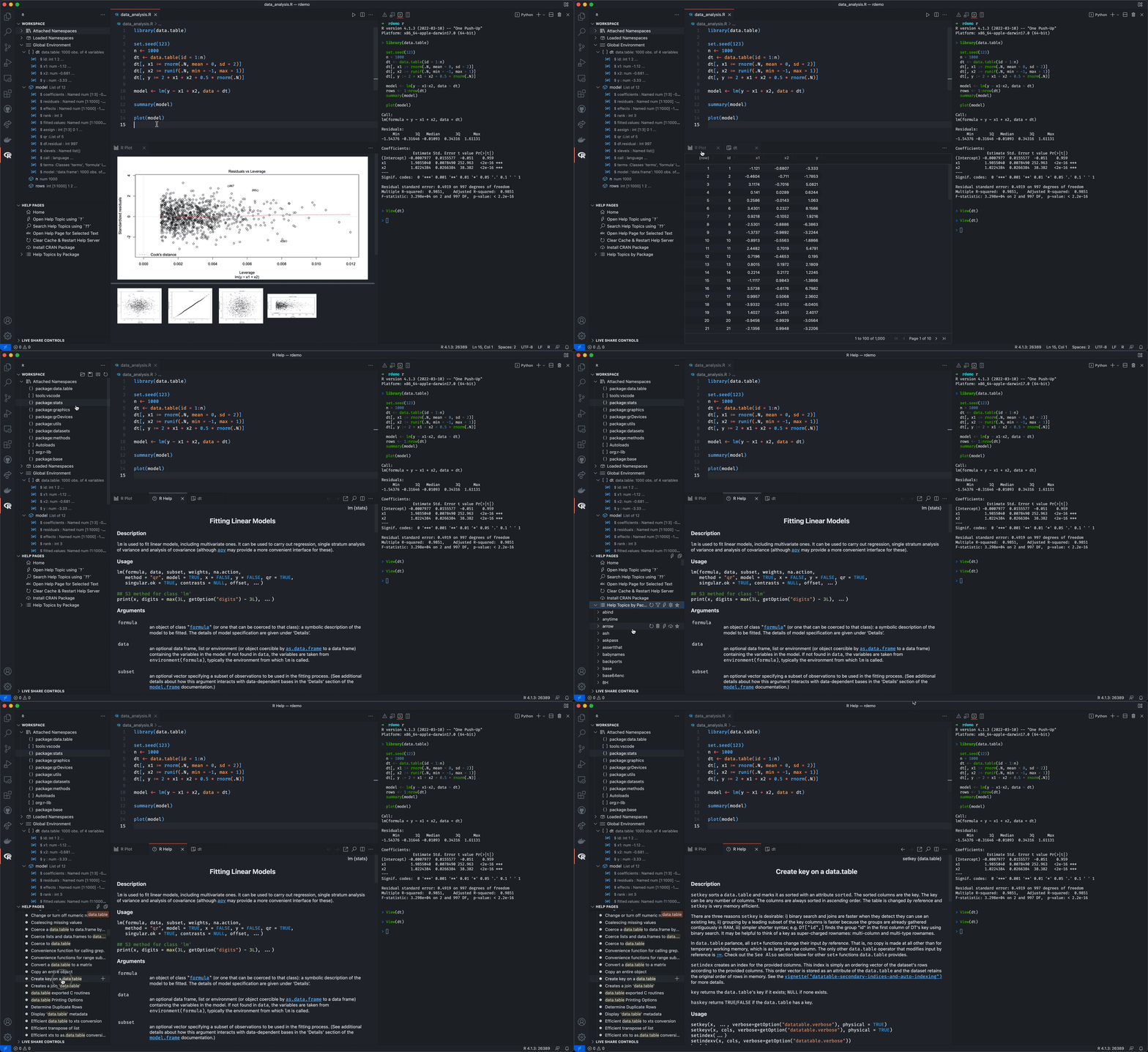
You can use view() to open the data viewer in a new tab. For example, view(mtcars) will open the mtcars dataset in the data viewer.