7.7 Presenter Notes
Q: Why using presenter notes?
A: A common mistake in presentations, especially for presenters without much experience, is to stuff a slide with too much content. The consequence is either a speaker, out of breath, reading the so many words out loud, or the audience starting to read the slides quietly by themselves without listening. Slides are not papers or books, so you should try to be brief in the visual content of slides but verbose in verbal narratives. If you have a lot to say about a slide, but cannot remember everything, you may consider using presenter notes.
Q: How to add presenter notes in xaringan?
A: In xaringan, presenter notes are written with ???.
Everything after ??? (on the same slide) will not appear on the slide, but will show up in presenter mode when you press p to toggle presenter view.
---

The holy passion of Friendship is of so sweet and steady
and loyal and enduring a nature that it will last through
a whole lifetime...

???
This is notes for presenter only.- Blank line under
???is NOT required.
Q: What is the behavior of presenter mode?
A: The presenter mode shows thumbnails of the current slide and the next slide on the left, presenter notes on the right (see HERE for more details), and also a timer on the top right.
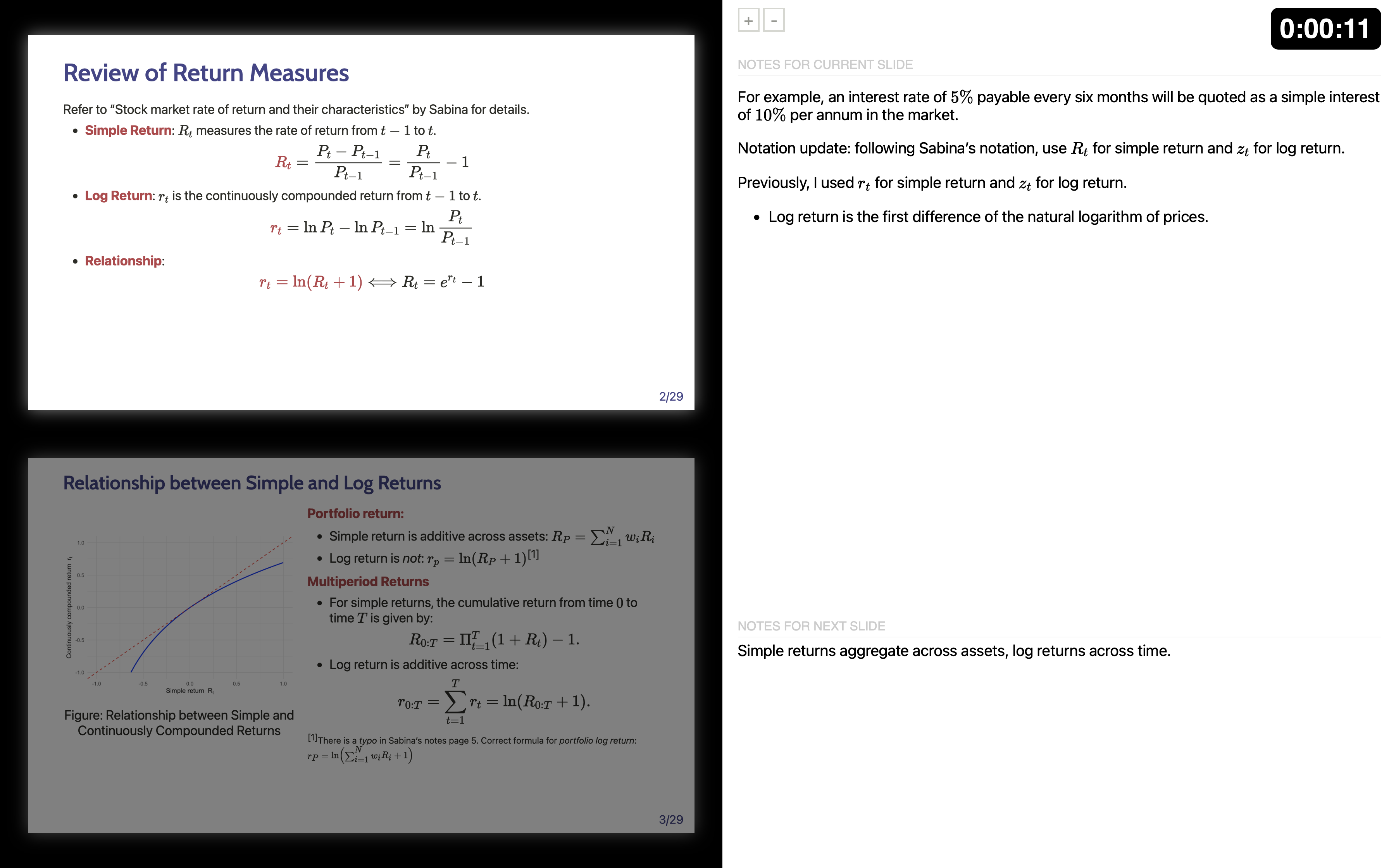
The keys c (clone) and p (presenter mode) can be very useful when you present with your own computer connected to a second screen (such as a projector).
Press
cto clone the slides to a second screen (e.g., projector).On your own computer, press
pto toggle presenter mode.When you present, you can see the presenter notes and the time on your own computer, while the audience sees only the slides on the projector.
When you nevigate across slides on your own computer, the two screens are synchronized, so the audience sees the same slide as you do.
Only you can see the presenter mode, which means only you can see presenter notes and the time, and preview the next slide. You may press t to restart the timer at any time.
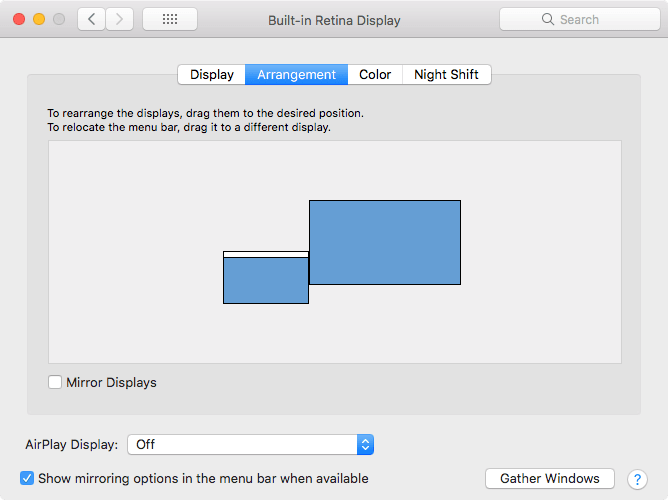
⚠️ One thing to check: if you mirror your display instead of extending it, then the audience will see exactly what you see (including notes). To avoid this, make sure you use extended display mode so only you get the presenter view.
The figure below shows the Displays settings on macOS for extended display mode.
- Do not check the box “Mirror Displays”.
- Instead, separate the two displays, so you can drag the window with the normal view of slides to the second screen.
7.7.1 Print to PDF with presenter notes
Need two files:
theme/print-notes.css: CSS file to style the print layout, which is used byprint-notes.Rto generate the PDF with notes.print-notes.R: R script to render the slides and print to PDF with notes.
One command, works for any xaringan deck in the repo:
That writes <deck>_notes.pdf next to the deck. E.g., ./print-notes.R equity_valuation.Rmd → equity_valuation_notes.pdf.
It also runs fine from the repo root, which is handy if you’re not in Slides/:
Rscriptis the a command-line program to run R scripts.
Flags (all optional):
| Flag | Effect |
|---|---|
--render |
Re-knit the .Rmd first. Without it, the existing .html is printed as-is (fast). |
-o FILE |
Choose the output path instead of <deck>_notes.pdf. |
--zoom 0.5 |
Shrink the slide on the page to make room for long notes (default 0.58). |
--wait 15 |
Extra seconds for MathJax to finish on heavy decks (default 10). |
Typical workflow after editing a deck:
Approach 1: Render first, then print to PDF with notes. This is the most common workflow. ✅
Approach 2: Use
--renderto render and print in one command.If you have made changes to the deck, you have to re-render the deck first before printing to PDF with notes. Otherwise, you may get a PDF with stale content.
--render makes sure the R chunks are re-run and the .html is up-to-date before printing to PDF. Otherwise, you may get a PDF with stale content.
If no <deck>.html exists, --render is implied. A render will be conducted before printing to PDF.
Three things to keep in mind:
- Notes come from
???blocks. Everything between???and the next---in the.Rmdbecomes that slide’s notes. A deck with no???still prints — you just get portrait pages with a slide and no notes box (I testedmkt_efficiency.Rmd, which has zero notes: 55 pages, slides only). For a slides-only PDF keep using your normal landscape print. theme/print-notes.cssmust stay next to the script, since the script looks for it at<script dir>/theme/print-notes.css. Edit that file to change fonts, the “Presenter notes” label, or the slide border permanently.- Console noise is normal. Some decks log JS warnings during printing (
mkt_efficiency.Rmdprints a\$ is not definedfromkePrint.js); the PDF is still produced. Only trust the final✓ <path>line.
Ref: