Chapter 14 Stata
Resources:
- User Guide: https://www.stata.com/manuals/u.pdf
- Tutorial: https://grodri.github.io/stata/
- Quick start:
Mac Stata does not have the close button  . To quit Stata, use either ⌘+Q or
 exit in the command window.
help <cmd_name>: Get help for a command in Stata console.
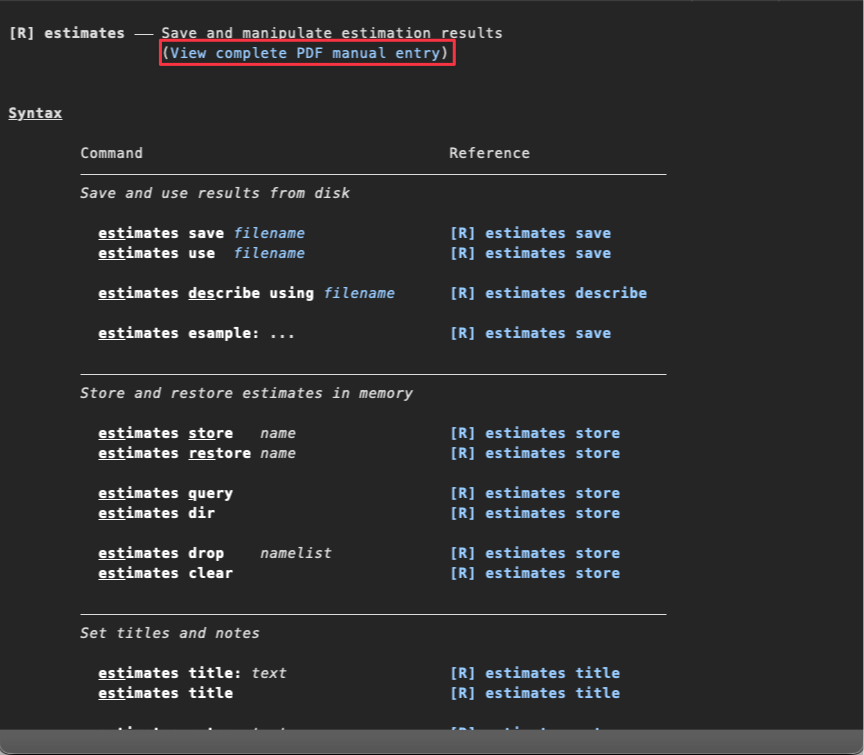
For instance, type help estimates to get help for estimates command in Stata. If there are official documentation for the command, you will see “View complete PDF manual entry” hyperlink at the top of the help page. Click on it to view the complete PDF manual.
Overview of Documentation:
[U] User’s Guide: is divided into three sections: Stata basics, Elements of Stata, and Advice.
Recommended to read.
Base Reference Manual: list commands alphabetically.
Not designed to be read from cover to cover.
The PDF documentation may be accessed from within Stata.
help command_nameand then click on the “View complete PDF manual entry” button under the command.Or in the menu bar, Help > PDF Documentation to open the complete PDF documentation.
The pdf documentation uses Acrobat Reader as the viewer. Tip: use finger pinch to zoom in and out. When using the zoom button or
cmd +/cmd -, the text jumps around, you lose your original position.
Quick Start
Comment:
*and//for single line comment;/* */for multiple line comment.**#(VS Code) or//#(Stata) add a bookmark. Multiple level bookmarks: add more#to indicate different levels of bookmarks. E.g.,**##or//##for level 2 bookmark,**###or//###for level 3 bookmark, etc.Line continuation:
///line-join indicator
// load the auto dataset
. sysuse auto, clear
(1978 automobile data)

// get summary statistics for price and mpg
. summarize price mpg
    Variable |        Obs        Mean    Std. dev.       Min        Max
-------------+---------------------------------------------------------
       price |         74    6165.257    2949.496       3291      15906
         mpg |         74     21.2973    5.785503         12         41

// scatter plot of price and mpg
. scatter price mpg, name(graph1, replace)
============================================================
GRAPHS DETECTED: 1 graph(s) created
============================================================
  • graph1: path-to-dir/graph1.png
Displaying 1 graph(s) in VS Code webview
Displayed 1 graph(s) in VS Code webview

// regress price on mpg
. reg price mpg
      Source |       SS           df       MS      Number of obs   =        74
-------------+----------------------------------   F(1, 72)        =     20.26
       Model |   139449474         1   139449474   Prob > F        =    0.0000
    Residual |   495615923        72  6883554.48   R-squared       =    0.2196
-------------+----------------------------------   Adj R-squared   =    0.2087
       Total |   635065396        73  8699525.97   Root MSE        =    2623.7
------------------------------------------------------------------------------
       price | Coefficient  Std. err.      t    P>|t|     [95% conf. interval]
-------------+----------------------------------------------------------------
         mpg |  -238.8943   53.07669    -4.50   0.000    -344.7008   -133.0879
       _cons |   11253.06   1170.813     9.61   0.000     8919.088    13587.03
------------------------------------------------------------------------------
sysuse dataset-name [, clear] loads shipped Stata-format datasets. A few datasets are included with Stata and are stored in the system directories. These datasets are
often used in the help files to demonstrate a certain feature.
clearspecifies that it is okay to replace the data in memory, even though the current data have not been saved to disk.Only one dataset can be in memory at a time. If you try to load a dataset when another dataset is already in memory, Stata will return an error unless you specify
clearto indicate that you want to replace the data in memory.
// list all datasets included with Stata
. sysuse dir
  auto.dta        bplong.dta      citytemp.dta    lifeexp.dta     nlswide1.dta    surface.dta     uslifeexp2.dta
  auto16.dta      bpwide.dta      citytemp4.dta   network1.dta    pop2000.dta     tsline1.dta     voter.dta
  auto2.dta       cancer.dta      educ99gdp.dta   network1a.dta   sandstone.dta   tsline2.dta     xtline1.dta
  autornd.dta     census.dta      gnp96.dta       nlsw88.dta      sp500.dta       uslifeexp.dta
The dot (
.) indicates that the current line is a Stata command.>indicates that the command is not yet complete. You will see this when you have a command that spans multiple lines.
Stata Keyboard Shortcuts
Actually not of much use. → Use Stata MCP extension in VS Code to run Stata commands. It is much more flexible and supports keyboard shortcuts that are actually useful, such as run selected lines. Refer to Run Stata in VS Code section to configure Stata in VS Code.
| Keyboard Shortcut | Description |
|---|---|
| ctrl + R | last cmd |
| ctrl + B | next cmd |
| cmd + shift + D | Run a Do file |
User interface
Within the Stata interface window, there are five windows: Command, Results, History, Properties, and Variables.
Other windows include: Data Editor, Do-file Editor, Graph Editor, Viewer, Variable Manager.
- Viewer: Help page window.
While Stata can be command-driven by typing code in the Command window, it can also be used in a point-and-click manner using the menu bar.
While nearly everything in Stata can be done via the menus, you’re better off typing commands into a word processing file and saving them, then copying-and-pasting them into the Stata “Command” window.
Buttons
Log: Track and save output from the Results window. Ensures replicability.
New Do-file Editor: Organize your history commands in one place, making debugging easier.
You can use do-files to create a batchlike environment in which you place all the commands you want to perform in a file and then instruct Stata to
dothat file.Ex. You have a do file
myjob.do, you can rundo myjoball commands in the do file would be sourced.
ref: Stata’s interface
Run Stata in VS Code
Keyboard shortcuts
| Keyboard Shortcut | Description |
|---|---|
| ⇧⌘Enter | Run selection / current line |
You can run Stata in VS Code using the Stata MCP extension.
Use Stata Language for syntax highlighting.
Q: Why run Stata in VS Code?
A: AI integration, code completion, shortcut to run current line, selected lines, etc.
Q: What is MCP?
A: Model Context Protocol (MCP) server.
MCP is a protocol for communication between an LLM (ChatGPT, Claude, etc.) to interact with external tools, applications, databased, etc. It allows the editor to send commands to the LLM and receive responses. The Stata MCP extension implements the MCP protocol to allow AI tools communicate with Stata.
Without MCP, each AI tool needs its own Stata integration. With MCP, any AI tool that supports MCP can integrate with Stata through the Stata MCP server. The MCP server receives requests, executes the corresponding Stata commands, and returns the results to the AI tool.
Further reading:
User case scenario:
You write prompts:
Open my panel dataset, winsorize all financial variables at the 1% level, run FE regressions, and export an esttab table.
Then the following workflow will happen:
User --> LLM --> MCP Server --> Stata --> Results --> MCP Server --> LLM explanation --> User
Configuration
{
  "stata-vscode.stataEdition": "se",
  "stata-vscode.autoStartServer": false,
  "stata-vscode.mcpServerPort": 7001,
}
"stata-vscode.stataEdition": "se"to specify the Stata edition you have. Defaults tomp.If you have another version other than
mp, must specify it accordingly. Otherwise, Stata MCP will not be able to find your Stata executable and activate Stata in VS Code.stata-vscode.autoStartServer: Automatically start MCP server when extension activates. Defaults totrue.Set to
truefor projects using Stata;falsefor projects not using Stata to avoid unnecessary resource usage.OUTPUT panel > “MCP: stata-mcp” to see the server status.
stata-vscode.mcpServerPort: Port for the MCP server, defaults to4000.4000conflicts with the default port for bundle jekyll server.So I set stata-mcp default port to
7001to avoid conflict.
Need to update the port number in your AI tool configuration accordingly,.vscode/mcp.json."servers": { "stata-mcp": { "type": "http", // port number must match the one specified in `stata-vscode.mcpServerPort` "url": "http://localhost:7001/mcp-streamable" } }Verify local MCP server is listening on. In terminal, run:
$curl -s http://localhost:7001/health
{"status":"ok","service":"Stata MCP Server","version":"0.4.1","stata_available":true}%
Paste the set up prompt below into any MCP-aware assistant — Claude Code, OpenAI Codex, Cursor AI, Copilot Chat, etc.
Remember to use the correct port number you specified in
stata-vscode.mcpServerPort.Set up the Stata MCP server for me. Endpoint: http://localhost:7001/mcp-streamable — setup guide: https://github.com/hanlulong/stata-mcp#detailed-configurations — if I already have a stata-mcp entry in my MCP config (e.g. using mcp-proxy), replace it rather than appending. When registration succeeds, tell me to restart the client so the stata_run_selection tool becomes available.The assistant reads the guide, detects which client it is, writes the right config (or runs the right CLI command), and tells you to restart.
stata-mcpwill be registered in~/.codex/config.toml. Thestata_run_selectiontool becomes visible after the restart — MCP tool lists do not refresh mid-session.
Connect to GitHub Copilot, then Copilot can help you:
- Write and execute Stata commands
- Analyze your data
- Generate visualizations
- Debug Stata code
- Create statistical reports
Other AI tools that can be integrated with Stata MCP include:
- ✅ Claude Code, OpenAI Codex.
- ❌ NO support for Gemini yet.
Configure Claude Code
claude mcp add --transport http stata-mcp http://localhost:7001/mcp-streamable --scope user;replace the port number with the one you specified in stata-vscode.mcpServerPort.
How-to
Create a .do file, then the toolbar will show as below.
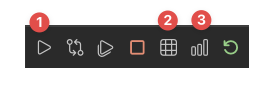
❶ Run selection
❷ View Data
❸ Interactive Mode (Take a while to load Interactive Stata)

Alternatively, use Command Palette to run commands: “Stata: Interactive Mode” to open interactive Stata.
Run Selection / Current Line Shortcut: ⇧⌘Enter
Show outline:
Lines start with two stars and one or more
#characters will be recognized as outline headers.- Level 1:
**# Level 1 Heading - Level 2:
**## Level 2 Heading
Two extensions can be used:
Use Stata Outline extension
Do NOT need to setup. Use out-of-box. Use from
**#to**######as hierarchical headers, supporting up to 6 levels.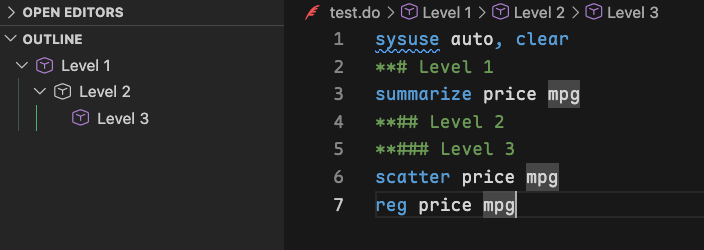
Use RegExp Outline extension and add the following to the “Regexp Outline: Header Rules Each Ext” setting.
[ {"ext": ".do", "rules": [ {"level": 1, "format": "^\\*\\*#(?!#)\\s*(.+)$", "nameIdx": 1, "detail": "H1"}, {"level": 2, "format": "^\\*\\*##(?!#)\\s*(.+)$", "nameIdx": 1, "detail": "H2"}, {"level": 3, "format": "^\\*\\*###\\s*(.+)$", "nameIdx": 1, "detail": "H3"} ] }]Need to escape special characters in the regex pattern:
\needs to be escaped as\\
Regex pattern explanation:
^asserts the start of a line;$asserts the end of a line.*means “match the preceding character zero or more times.A*would match zero or moreAcharacters.\s*matches zero or more whitespace characters.\smatches any whitespace character.\*matches a literal*character;.means any character except a newline;.+means one or more of any character.()captures the matched content for later use.(?!#)is a negative lookahead assertion that ensures the next character is not#. This prevents matching lines with more than the specified number of#characters.
- Level 1:
Stata Data Viewer
Stata MCP provides a data viewer but it is NOT flexible enough. I recommend Stata Viewer extension.
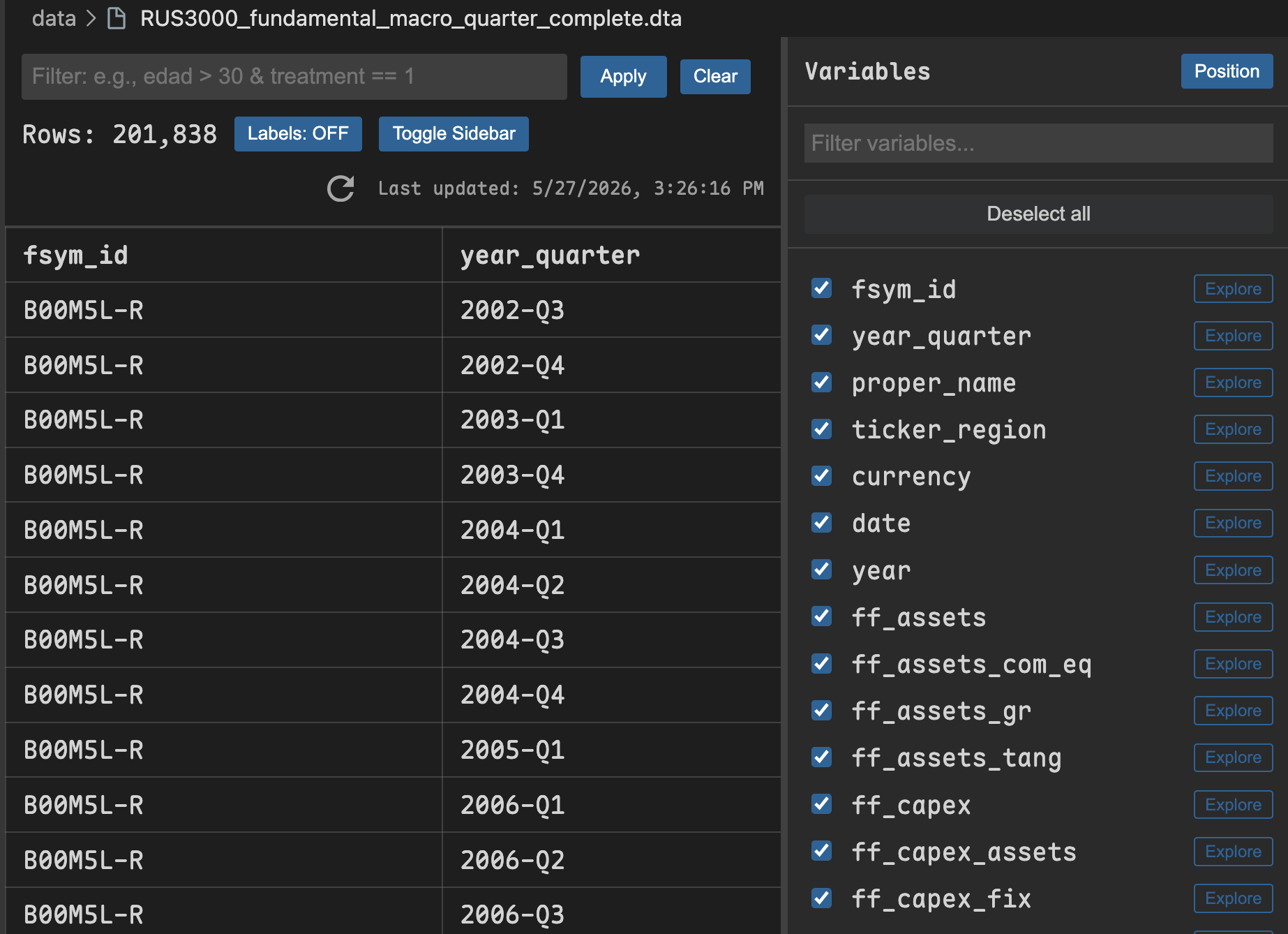
You can have an overview of the variables in the sidebar, quick sort and filter, summarize the dataset, etc.
Click “Explore” in the variable list to have a quick summary of the variable, including its distribution, missing values, and summary statistics.
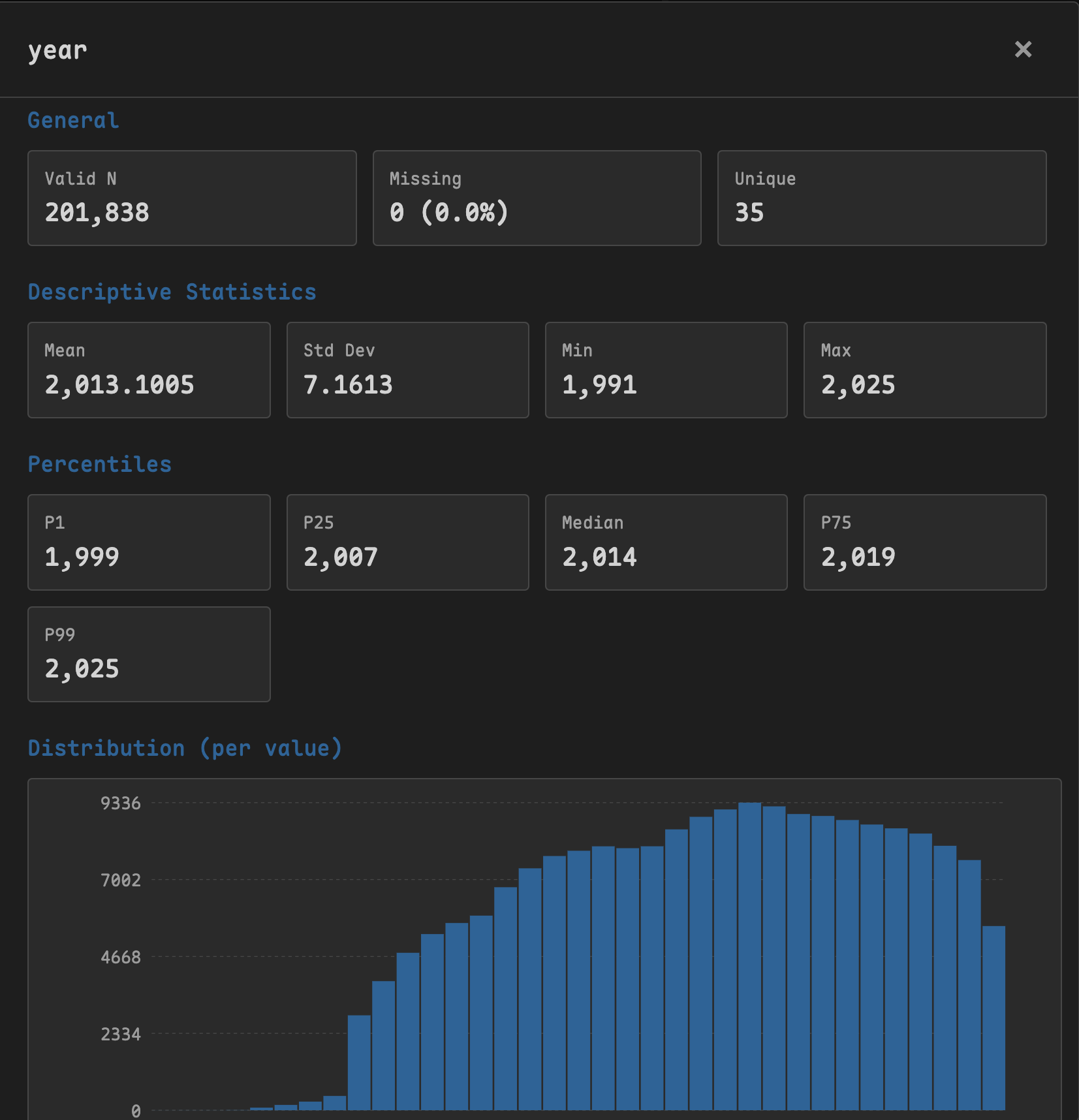
Do-file
It is recommended to run do files as a whole. (This is different than R.)
You cannot re-run commands freely in Stata.
For example, if you run a command that creates a variable x, realize you made a mistake, and then fix it, you can’t simply select the command that creates x and run it again because x already exists. You could manually drop the existing version of x, but now you’re doing things in a non-reproducible way. Running the entire do file will eliminate this problem because it reloads the data from disk every time. If you find yourself getting confused by these kinds of issues, run the entire do file rather than a selection.
Do-file Rule of Thumb
Your
.dofile begins with loading a dataset and ends with saving one.Never modify the raw data files. Save the results of your data cleaning in a new file.
Every data file is created by a script. Convert your interactive data cleaning session to a
.dofile.No data file is modified by multiple scripts.
Intermediate steps are saved in different files (or kept in temporary files).
Keep do files short
Our suggestion is that you keep your do files short enough that when you’re working on one of them you can easily wrap your head around it. You also want to keep do files short so they run as quickly as possible: working on a do file usually requires running it repeatedly, so moving any code that you consider “done” to a different do file will save time.
Project Structure
You can have a master
dofile which loads your small sectiondofiles sequentially and all in one.Enumerate your
dofiles.Example:
0-master.do,1-data-clean.do,2-stylized-facts.do, …You can then organize them in sub-do-files: if you have different set of stylized facts, you
could have:
2.1-stylized-facts-geography.do,2.2-stylized-facts-count.doetc. . . .
Comments
//for single line comment; rest-of-line comment; it can be put at any place.Commonly used after a command to denote comments on that line.
*for single line comments; the comment line must begin with*;/* */for multiple line comment; enclosed comment;//#or**#add a bookmarkMultiple level bookmarks: add more
#to indicate different levels of bookmarks. E.g.,//##or**##for level 2 bookmark,//###or**###for level 3 bookmark, etc.///line-join indicatorCommand panel does NOT support
///line-join indicator. You can only use///in do-files.Note that the
//comment indicator and the///indicator must be preceded by one or more blanks.See [U] 16.1.2 Comments and blank lines in do-files for more details.
Continuation lines:
//////is called the line-join indicator or line continuation marker. It makes long lines more readable.Everything after
///to the end of the current line is considered a comment. The next line joins with the current line. Therefore,///allows you to split long lines across multiple lines in the do-file.Summary of ways to break long lines:
You can change the end-of-line delimiter to
;by using#delimit,Once you declear
#delimit ;, all lines must end in;. Stata treats carriage returns as no different from blanks.you can comment out the line break by using
/* */comment delimiters, oryou can use the
///line-join indicator.Example
equivalently, you can use
/* */to break long lines:N.B. There’s NO line continuation marker (
///) in the command window.In the command window, the enter key sends what has been written on the line to Stata. There is no way to continue a long command on a second line, without sending the first (incomplete) line to Stata.
You can add comments after
///.is equivalent to
cd "directory_name"change working directory.pwddisplays the path of the current working directory.exit, clearto quit Stata. If the dataset in memory has changed since the last time it was saved, Stata will refuse to quit unless you specifyclear.Abbreviation rules: Stata allows abbreviations. You can abbreviate commands, variable names, and options.
As a general rule, command, option, and variable names may be abbreviated to the shortest string of characters that uniquely identifies them.
When you read the Stata manual, it uses underlines to denote the minimal abbreviation for a command or option.
E.g. When you see append, it means you can use
apto denoteappend. describe means the shortest allowable abbreviation fordescribeisdesc.If there is no underlining, no abbreviation is allowed.
renamecan be abbreviatedren,rena,renam, or it can be spelled out in its entirety.Open
dofiles in tabs rather than in separate windows: https://www.reddit.com/r/stata/comments/1ivjegr/stata_18_mac_does_not_do_tabs_for_dofile_editor/